Getting started
Quick Start
Learn how to to get started quickly and securely on Normain.
This is a quick start guide to help you get up and running in minutes. For a deeper walkthrough of features, advanced workflows, and best practices, head to Working Smarter with Normain.
Watch the interactive demo to see how a full Extraction works in practice:

Normain in three simple steps
Every Extraction in Normain follows the same simple workflow:
Upload files
Define insights
Extract and validate
These three steps together create one Extraction, which you can think of as one project, one use case, or one piece of work you want to complete.
Creating an Extraction
Start by creating a new Extraction for the task you are working on.
Upload files & links
Normain works with both uploaded files and sources connected through file storage integrations.
Upload files
Drag & drop or browse (PDFs, spreadsheets, images, documents).Add links (URLs)
Paste web pages you want to extract from. Normain currently extracts from the specific page you provide. Website-wide crawling is in development.Connect cloud storage
Google Drive, SharePoint, Box (and more).
You can keep things tidy on the platform by using folders, renaming sources, and reordering files as your workspace grows.
Define insights
Insights are the core of Normain.
They describe what you want to extract, in your own words.
Click
Add insight.Give your insight a title (e.g. total revenue), or let Normain generate one automatically if left empty.
Write the question or instruction
Questions can range from simpler data extraction (e.g. “What is the total revenue of the company?”) to more advanced analysis (e.g. “Compare the client’s sustainability report against CSRD requirements and list any missing disclosures, with supporting evidence.”).
Extract & validate
Once your files and insights are ready:
Click
ExtractFollow the progress in real time
Validate results
Each insight comes with built-in trust and verification through the Trust Panel, including:
Detailed source-references: a preview of the exact document page used, with highlighted excerpts showing what each part of the insight is grounded in
Confidence indicators: showing how confident the AI is in the reliability of the extracted result
Reasoning steps: a clear breakdown of how Normain arrived at the insight
Validation tools: the ability to mark answers as correct (coming soon), provide feedback, and re-run only the specific insight, with AI support to refine prompts before regenerating
Export
When you are ready to share results or continue working outside Normain:
Click
DownloadExport your Extraction in a spreadsheet-format, including:
Extracted insights
Confidence levels
Source references
You can also choose how the export is formatted (for example rows vs columns) by transposing the table view before exporting.
Extraction Views
Normain supports different Extraction views depending on how you want to work. Choose the view that matches the job.
Card View
Card View is the default. It extracts insights across all selected sources in one run.
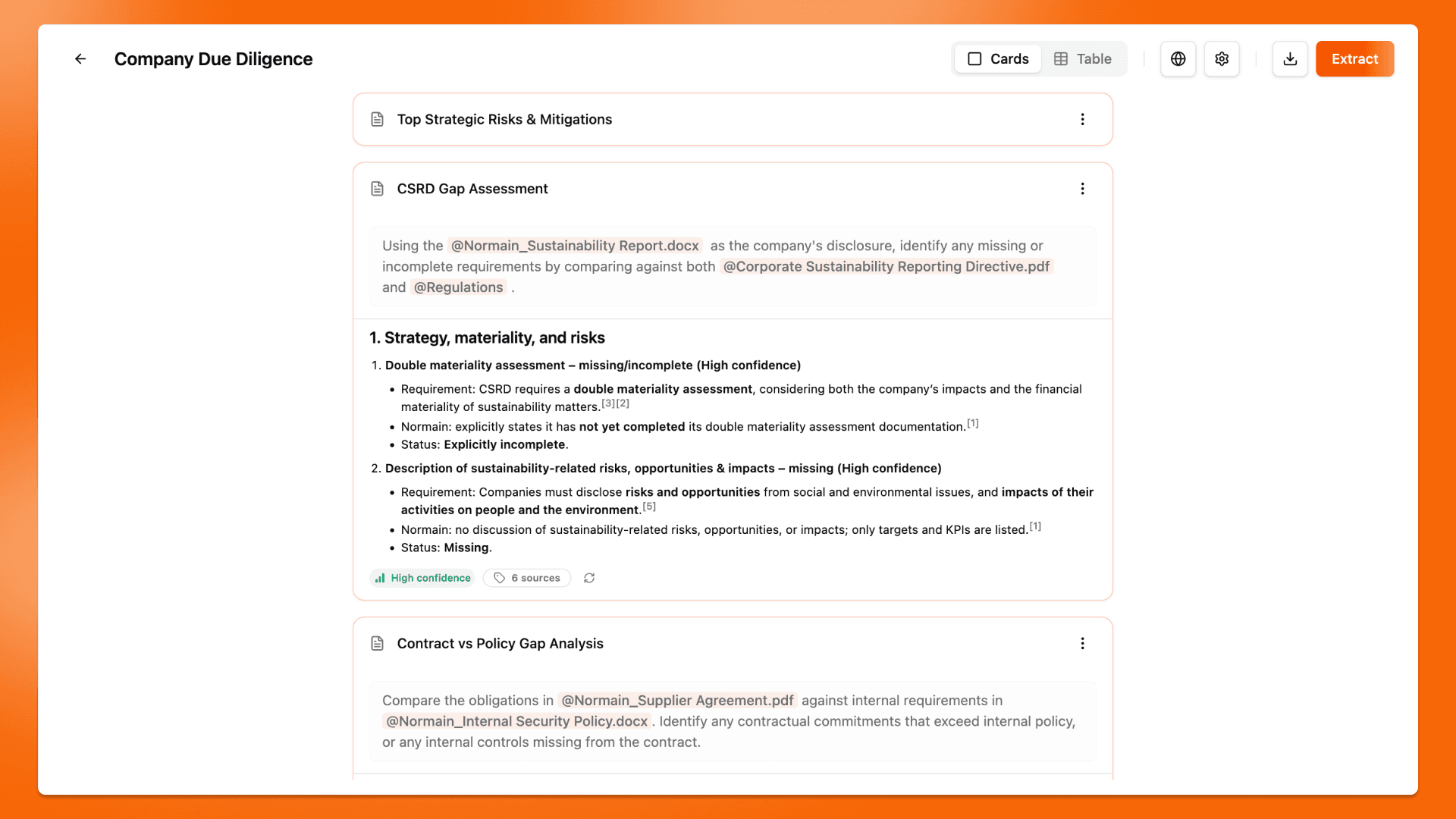
Best for:
When you want results presented in a document-style format
Analyzing multiple documents together
Comparing and cross-referencing information across files
One-off tasks where the full set of sources matters
Tips to move faster
Use a Global Prompt to set shared context once (such as the scope of the analysis, key assumptions, or what to prioritise or ignore across all insights).
Start with one file to confirm your insight wording
Set your desired output format for each insight (for example free text, number, date, or yes/no).
Tag specific files or folders in your prompts to guide Normain to exactly where it should look.
Table View
Table View is a spreadsheet-style view of your Extraction, letting you review everything in one structured grid. It is designed for speed, comparison, and scale.
In Table View, insights are displayed as columns or rows, with extracted results shown directly in the cells. This makes it easy to scan outputs quickly, compare results side by side, and spot gaps across many insights. You can also transpose rows and columns, and resize columns row heights for a cleaner review experience.
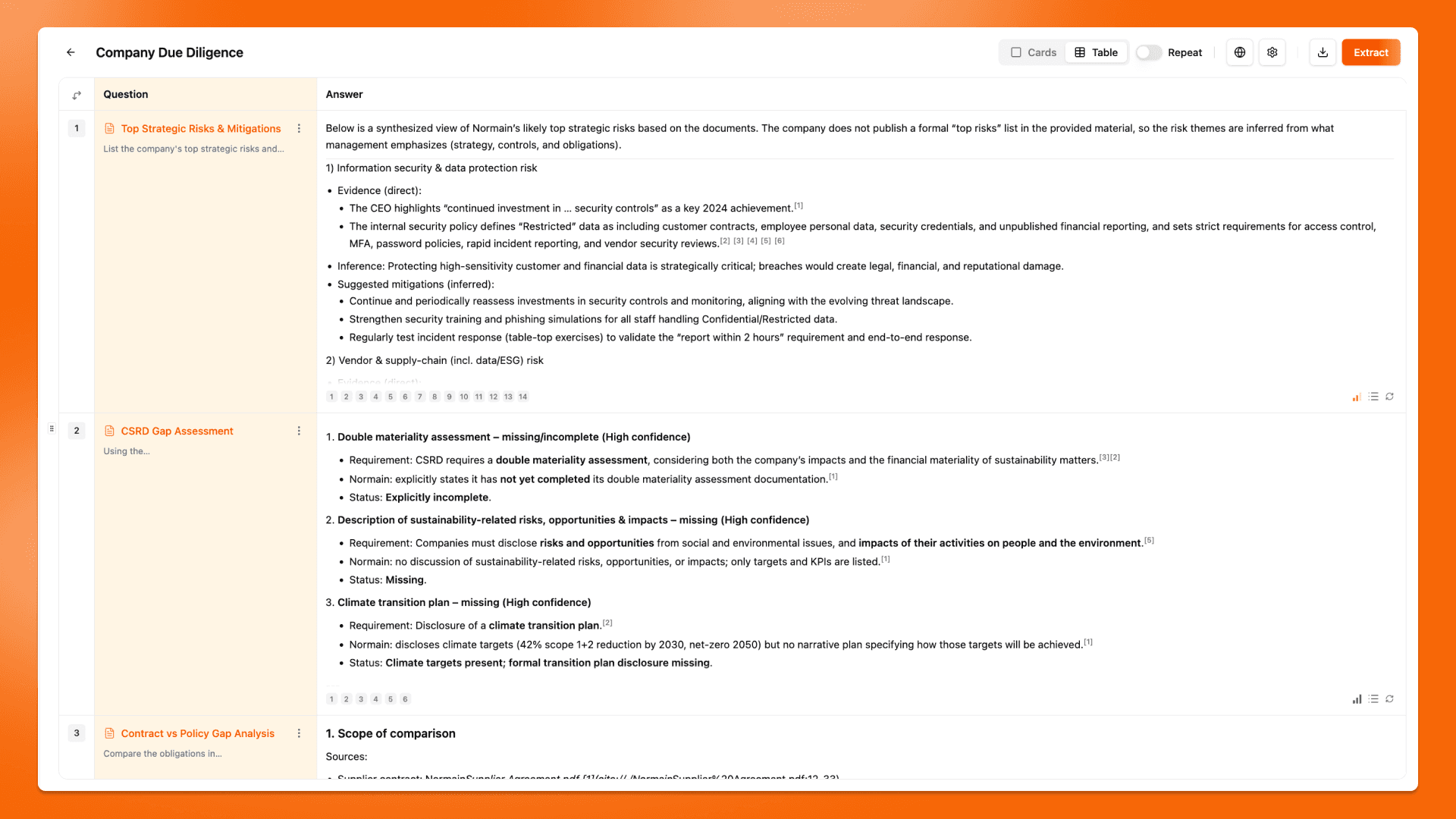
Best for:
Working with many insights at once
Repeat Mode outputs across multiple files or folders
Repeat Mode in Table View
In Table View, you can use Repeat Mode to run the same set of insights across multiple items and get structured results at scale.
Repeat allows you to apply one Extraction to:
Multiple individual files, where each file becomes a new row, or
Entire folders, where each folder represents one case (for example one client), even if it contains multiple files
Repeat Mode makes it easy to run the same questions consistently across many documents or across multiple client folders, and compare outputs side by side in a single table.
Best for:
Running the same set of insights across many similar documents at scale
Creating one consistent row per file or per folder
Comparing outputs side by side in a structured table
You can control repeat behavior using filters such as item type (files, folders, or both) and scope (the full workspace or a specific folder).
Example use cases:
Run the same due diligence extraction across 20 client folders, where each client becomes one row
Process 100 invoices so each invoice becomes one row, with columns like vendor, amount, and due date
Review a portfolio of contracts, extracting key terms consistently across all agreements
Perform a regulatory gap check across multiple subsidiaries, one folder per business unit
Extract ESG KPIs across reporting packs from different years or regions
Trust Panel
Simply click on an insight to open the Trust Panel, where you can review source references, confidence levels, and validate results directly.
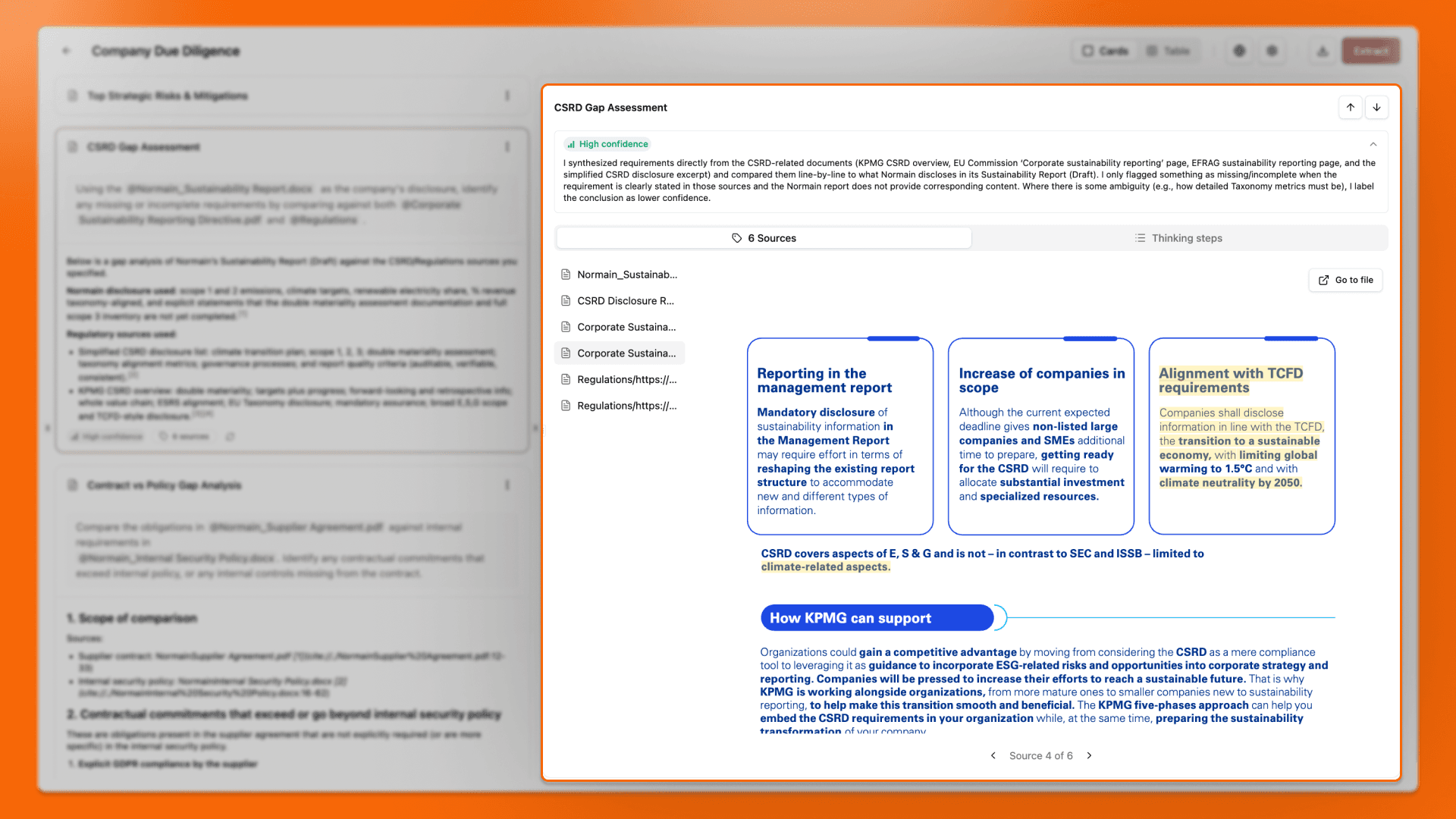
Source references
Every extracted result includes source references so you can trace answers back to the original document.
Source references show:
The document name
The exact page, slide, sheet, or cell used
A preview of the supporting content
Source references make every insight transparent, so you can instantly trace results back to the exact evidence in the original document.
Confidence levels
Each insight includes a confidence indicator. This is Normain's assessment of how confident it is in the answer it generated, based on the available source content.
You can view it by hovering over the confidence icon next to a result.Hovering also reveals a short breakdown of how Normain arrived at the result.
Use confidence levels to quickly decide what needs review first.
High confidence: likely correct
Medium confidence: review recommended
Low confidence: manual check needed
Confidence levels help you focus attention where it matters most, especially in large Extractions.
Validation
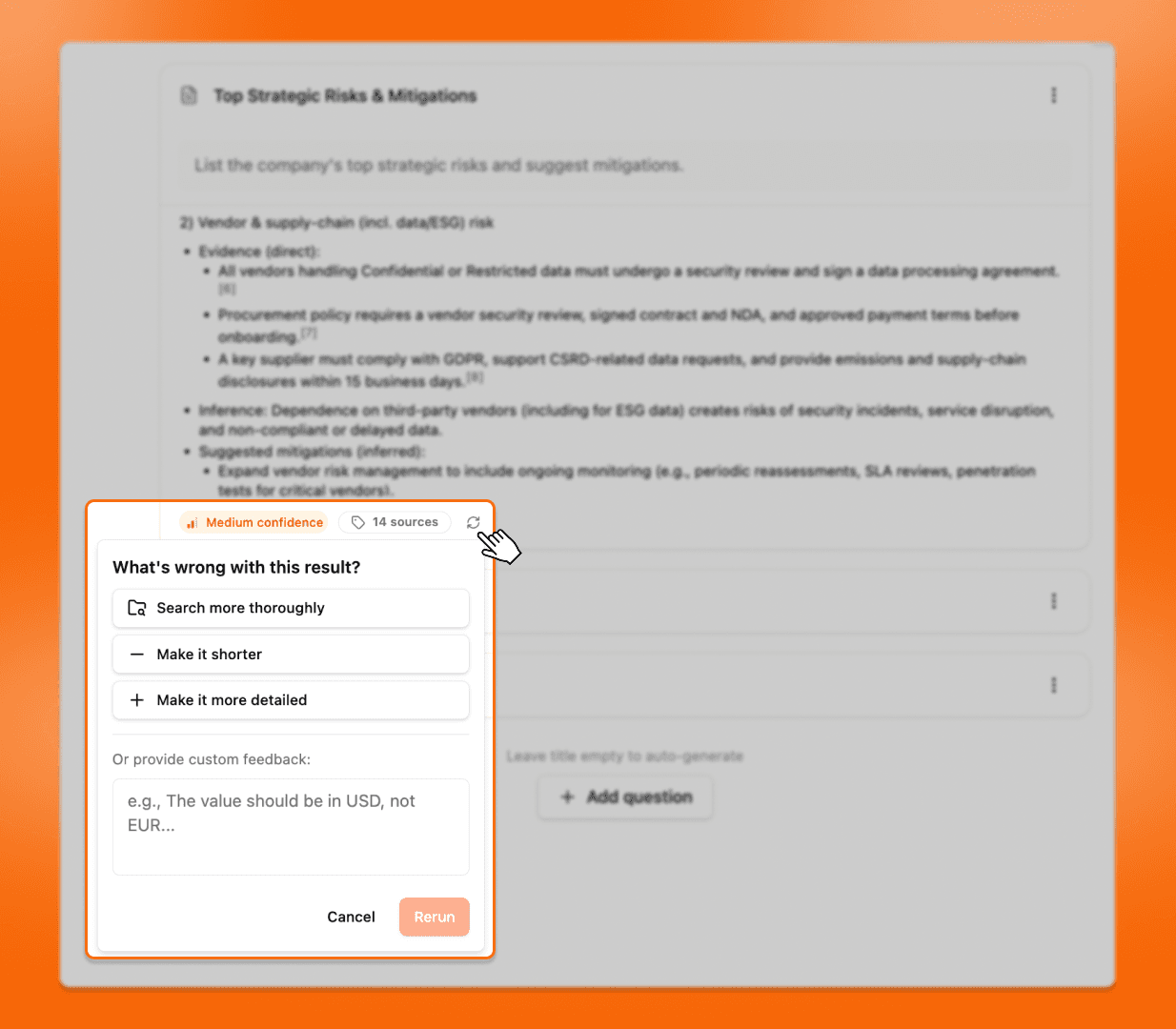
The Trust Panel helps you refine results quickly without starting over.
How it works:
Start by reviewing your results, prioritizing insights with low confidence. Mark what is correct, then select an insight that needs improvement and click Feedback. Choose a feedback option or write your own instruction.
From there, you can either re-run the insight immediately based on your feedback, or get help refining the prompt before re-running. Once updated, compare the new result to the previous one.
Common feedback actions:
Search more thoroughly
Make it shorter
Make it more detailed
Add custom instructions
Validation keeps you in control, letting you confirm what is correct, fix what is not, and rerun only what needs improvement.
Data Security
Protecting customer data is fundamental to how Normain is built and operated.
Your data stays yours. You own all the data provided to Normain, and all data generated in Normain.
No training, no sharing. Normain will never use your data to train AI models and will never share it with other customers.
Access is controlled. Only authorized users in your organisation and teams can access your workspace.
For more details on data ownership and our security certifications, see Security.
Need help? Contact Support