Adding Sources and Insights
What you put into a project: the documents Normain reads, and the questions it answers.
Data sources
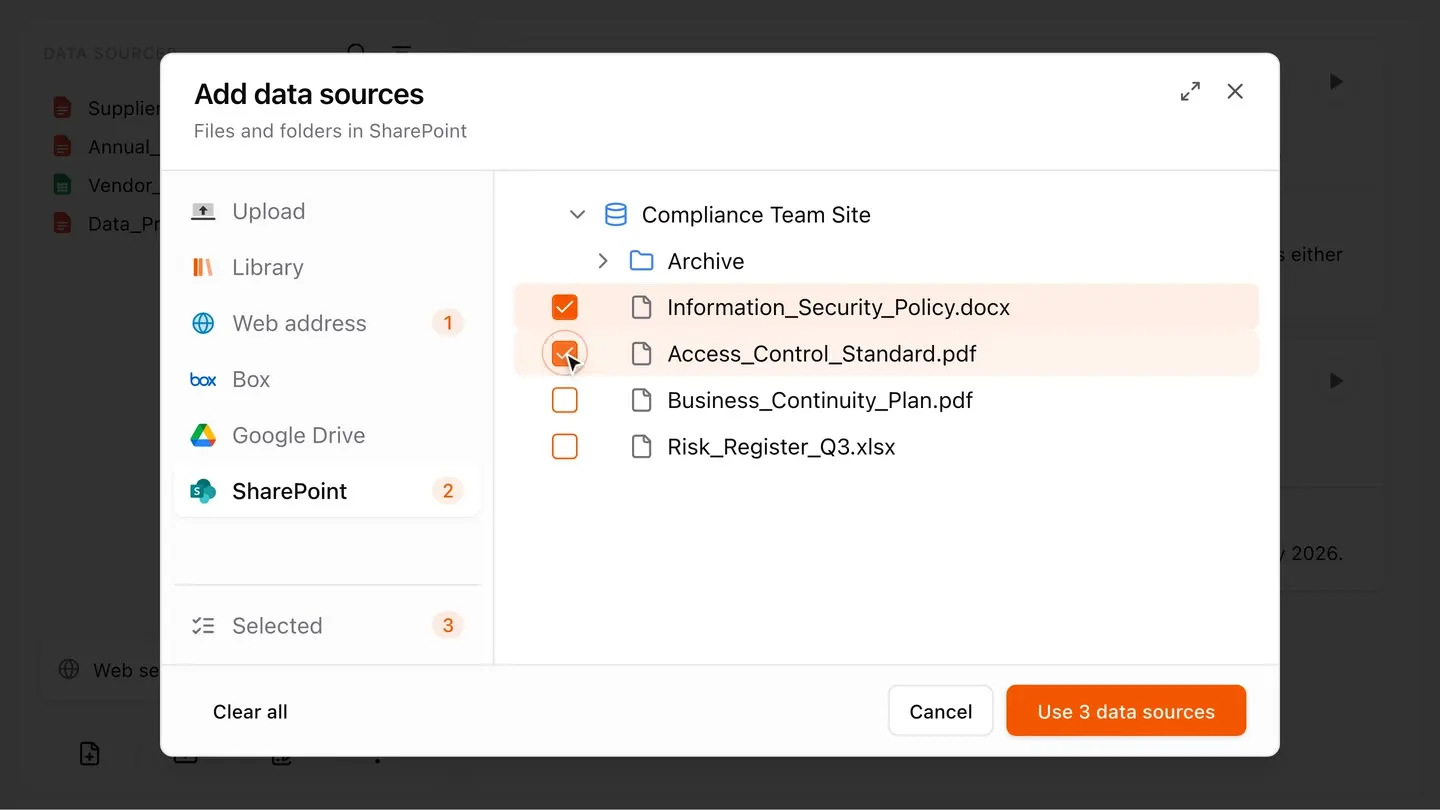
Normain works with the files you upload and with sources you connect through integrations. The quickest ways to bring data in are:
- Upload files - drag and drop or browse your computer (PDF, Word, Excel, PowerPoint, scanned files, images, text, CSV, Markdown, JSON, TIF, SIE and email files).
- Add links (URLs) - paste web pages you want to extract from. Normain reads the specific page you provide; website-wide crawling is in development.
- Connect cloud storage - connect your existing file storage system such as SharePoint, Google Drive, and Box. We add integrations continuously; request yours.
- Web search - let Normain look things up on the open web when the answer is not in your documents.
- Custom API - connect Normain to your own systems and send documents and questions through the API.
- MCP - connect an AI assistant such as Claude or Codex to set up projects and bring in files.
Besides these, you can also add one-off text sources. Read more below.
Web search
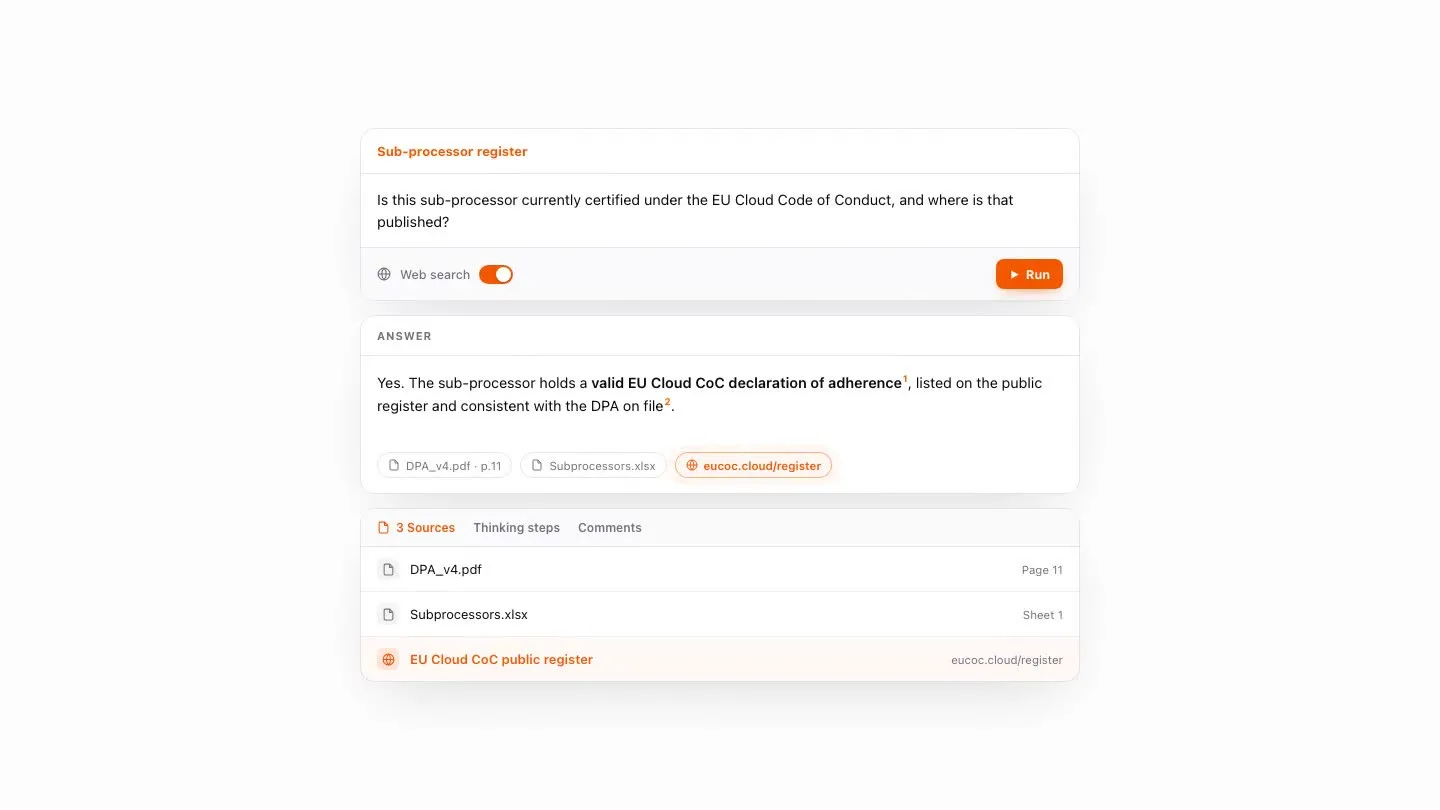
Web search is off by default for any kind of project, and Normain always looks in your own documents first. Web search lets Normain look up information on the open web when the answer isn’t in your uploaded documents, for example current figures, external context, or public data that supplements your sources. Normain reads the pages it finds, and they show up as clickable citations on the answer, so a web-based answer is just as traceable as one from your files.
Turning on web search in an Extraction
In an Extraction, turn web search on for the whole project by toggling Web search at the bottom of the Data Sources panel. If you don’t want Normain to roam freely, you can restrict it to specific sites by adding URL links as data sources instead.
Turning on web search in a Notebook
In a Notebook, web access is turned on one step at a time. In Review mode, Normain pauses and asks someone to approve each search or page before it continues, and records who approved. In Always allow mode, the step goes to the web on its own.
One-off text sources
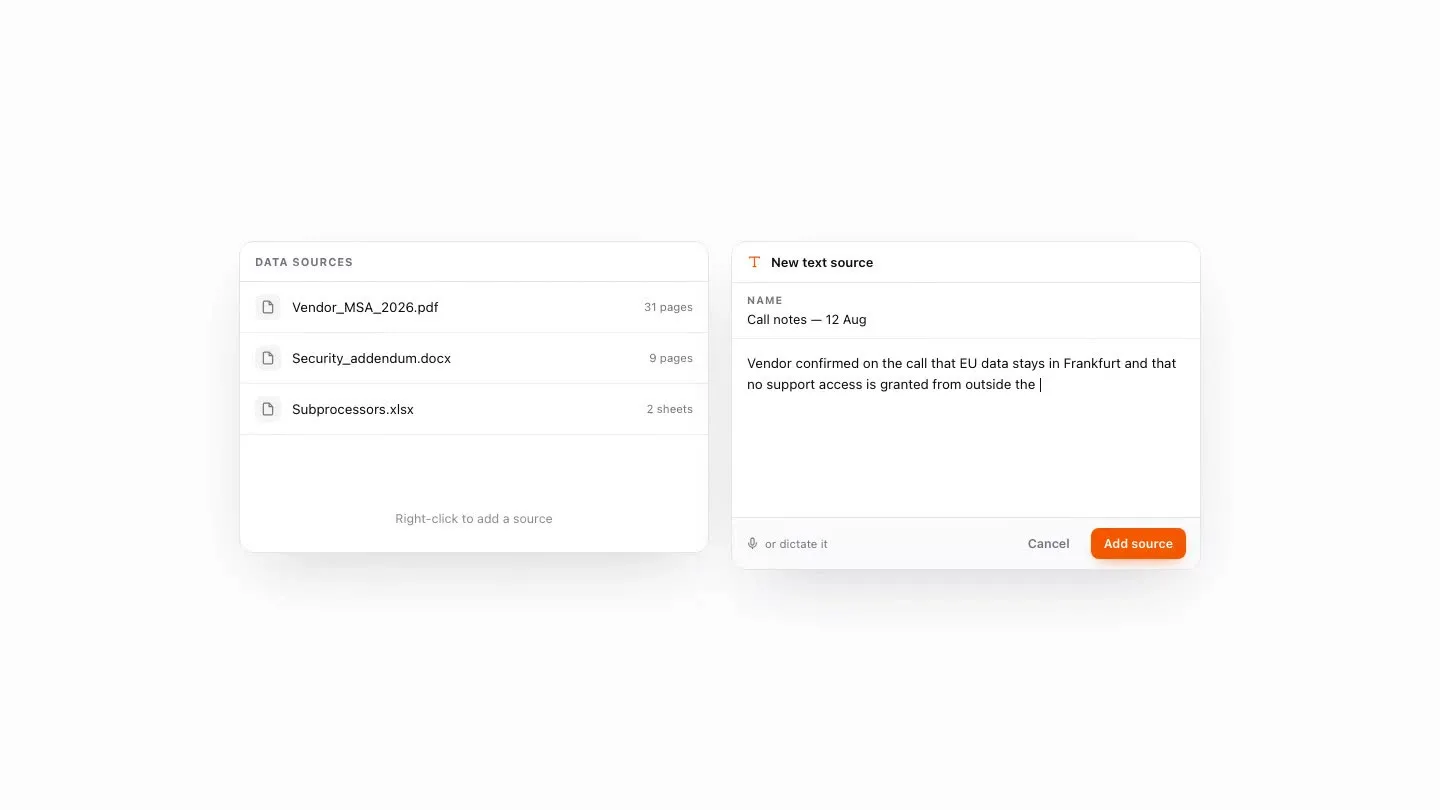
A one-off text source lets you add a short piece of text directly, without uploading a file. It’s useful for internal definitions, methodology notes, or context that doesn’t live in a document.
- Click the text source button in the Data Sources panel footer (or right-click a folder and choose Create text source).
- Type or paste your notes, or hit the mic to dictate and Normain transcribes it for you.
- Save. The text is stored as a Markdown file Normain can index, scoped to that Extraction.
Once saved it behaves like any other source in your file tree, and stays available until you delete it.
Data sources library
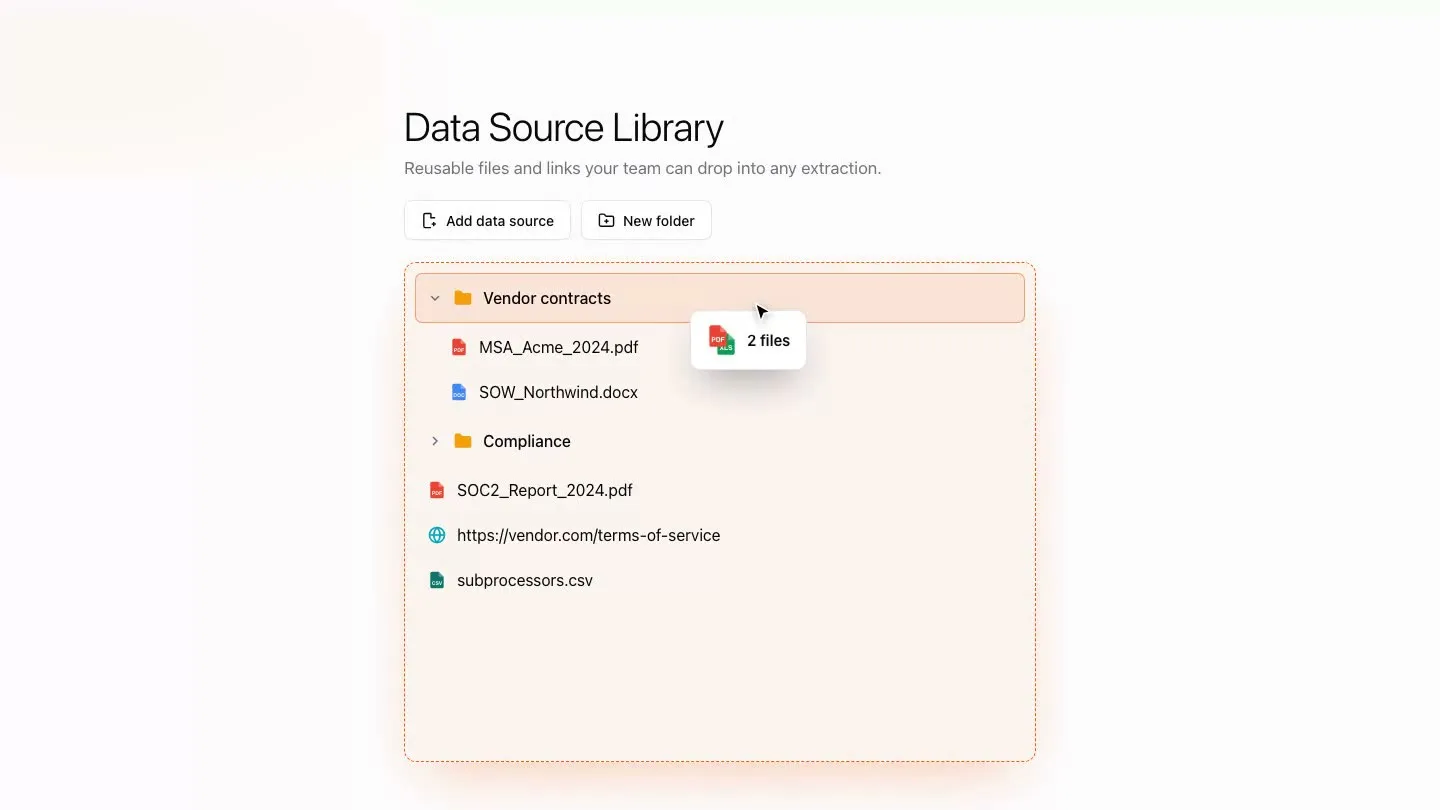
The data sources library is where your organisation keeps the documents it uses across many projects. It is a shared, team-level store for the sources you reuse often, such as regulations, frameworks, templates and reference documents, so they are one click away in any project.
Saved data sources are managed on the Data Sources tab of the Library.
Save a source
Right-click any file or folder and choose Add to library. Pick where it should go, and create a new folder there if you need one.
Reuse a source
Open the Library tab, check the sources or folders you want, and add them to your Extraction. Folder structure is mirrored into the project.
Insights
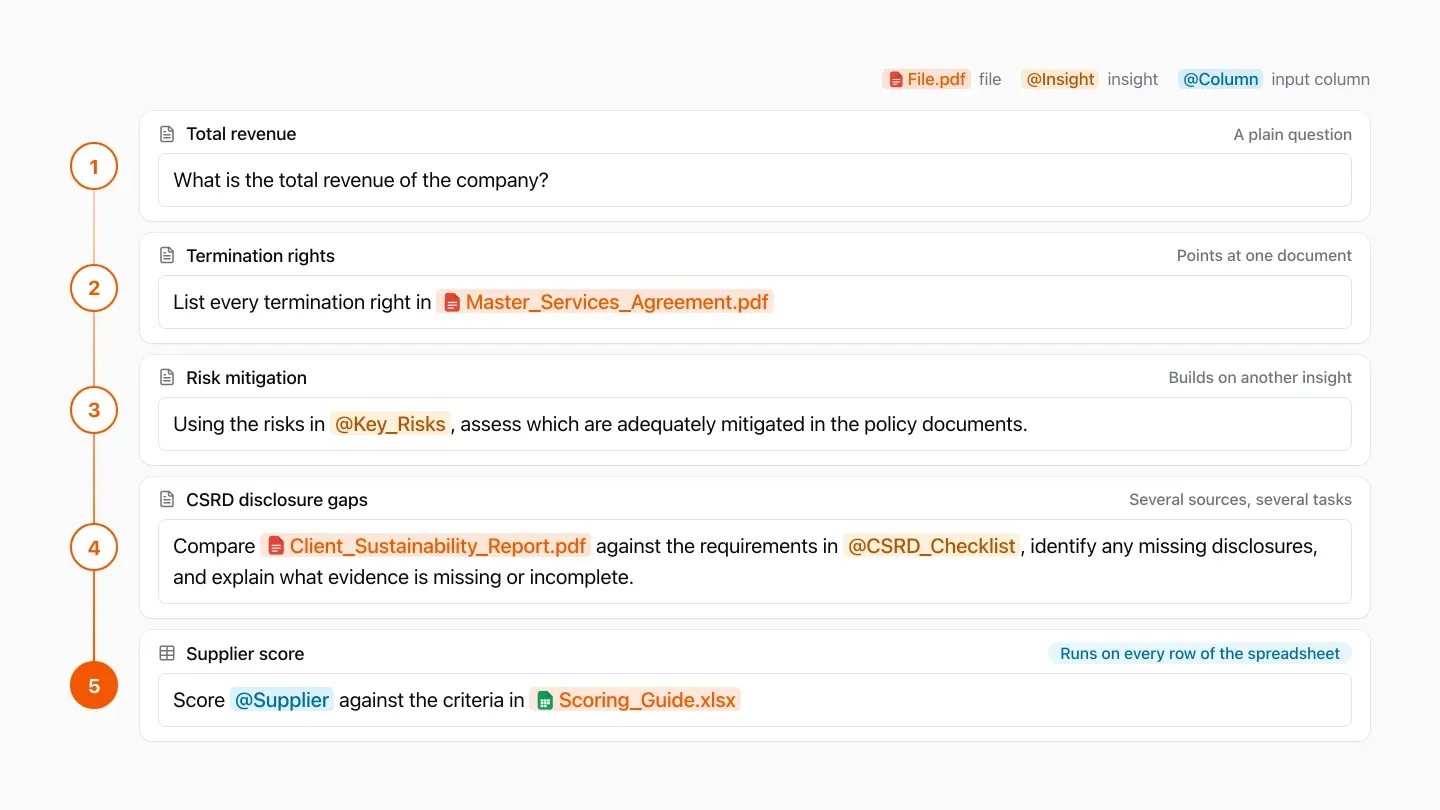
An insight is a question you want answered. It is the core of how you tell Normain what to find.
Instructions can be as simple or as rich as you need:
- “What is the total revenue of the company?”
- “Compare @Client_Sustainability_Report against the requirements in @CSRD_Checklist, identify any missing disclosures, and explain what evidence is missing or incomplete.”
Bulk-adding insights
This section is only relevant for Extractions.
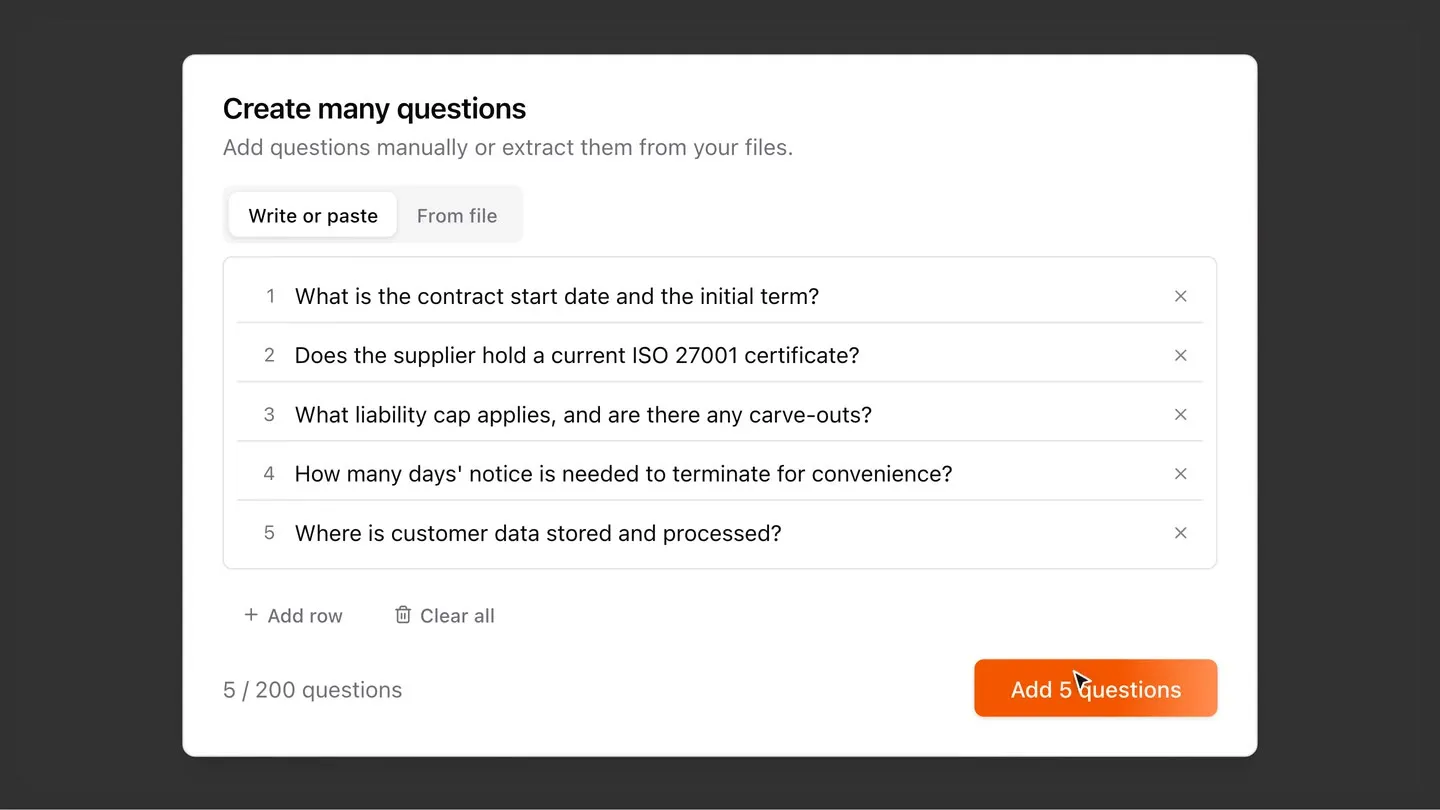
When you have many questions, you can add them all at once. There are two ways: pasting a list creates one insight per line exactly as you wrote it, while generating from a file has Normain draft the questions for you.
Paste or write a list
Open Create many questions and use the Write or paste tab. Paste a list of questions, one per line, or type them row by row. Normain creates one insight per line (up to 200 at a time) and auto-generates a title for each.
Generate from a file
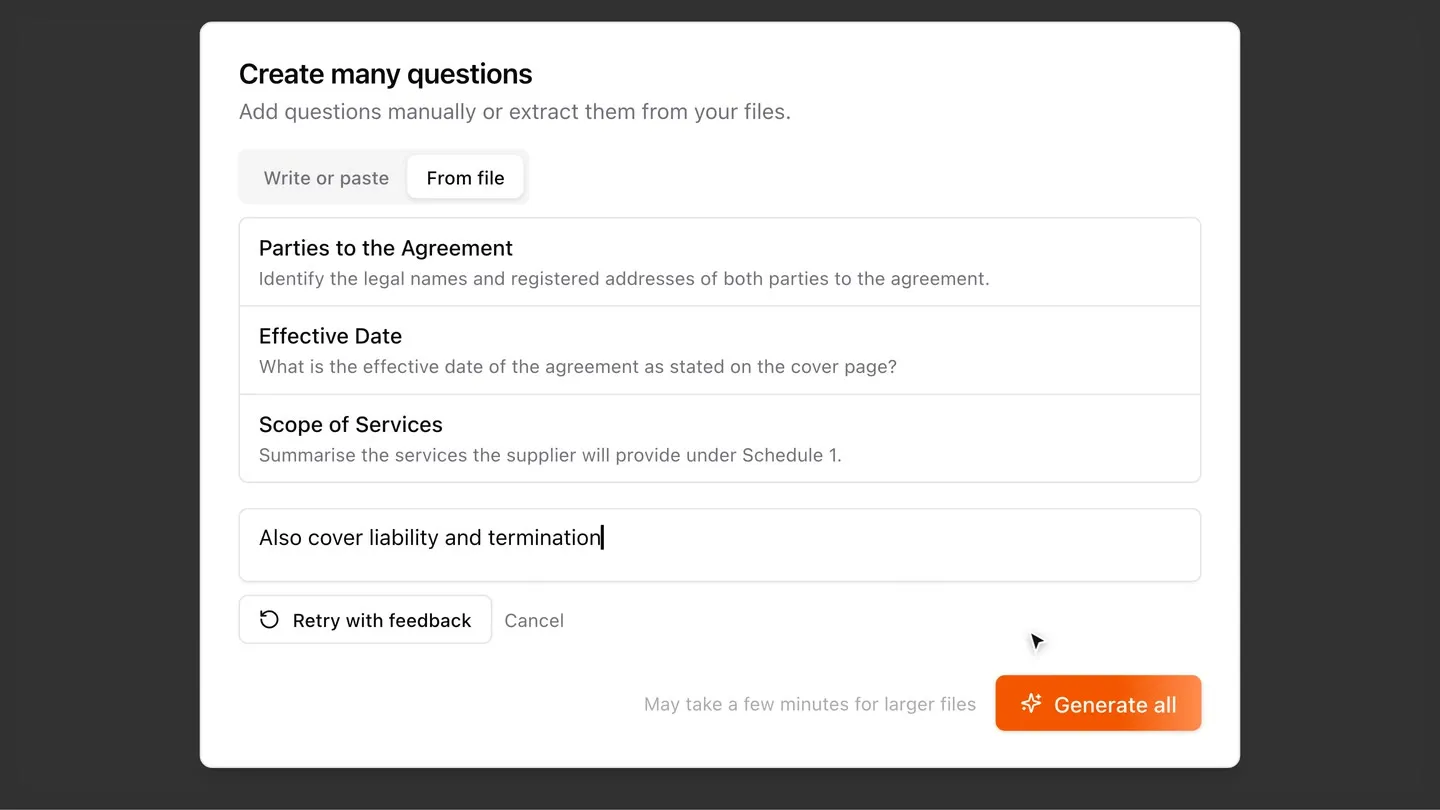
On the From file tab, select one or more indexed files and, optionally, add instructions (for example, “focus on pages 1-5”). Normain reads each document and drafts a starting set of questions. It first shows a small preview so you can refine with feedback, then you generate all to produce the full set.
Tagging files, folders, and other insights
Type @ in any instruction to tag a specific source or another insight. This is
one of the main ways to put your own domain expertise into Normain: it points
the analysis at exactly the right place, and it is key to getting precise,
reproducible answers. There are three things you can tag:
- Files & folders - direct Normain to the exact source it should read.
- Other insights - reference another question’s answer so you can build on earlier results and feed one answer into the next.
- Input columns (spreadsheet mode) - use the data you brought in as part of the instruction.
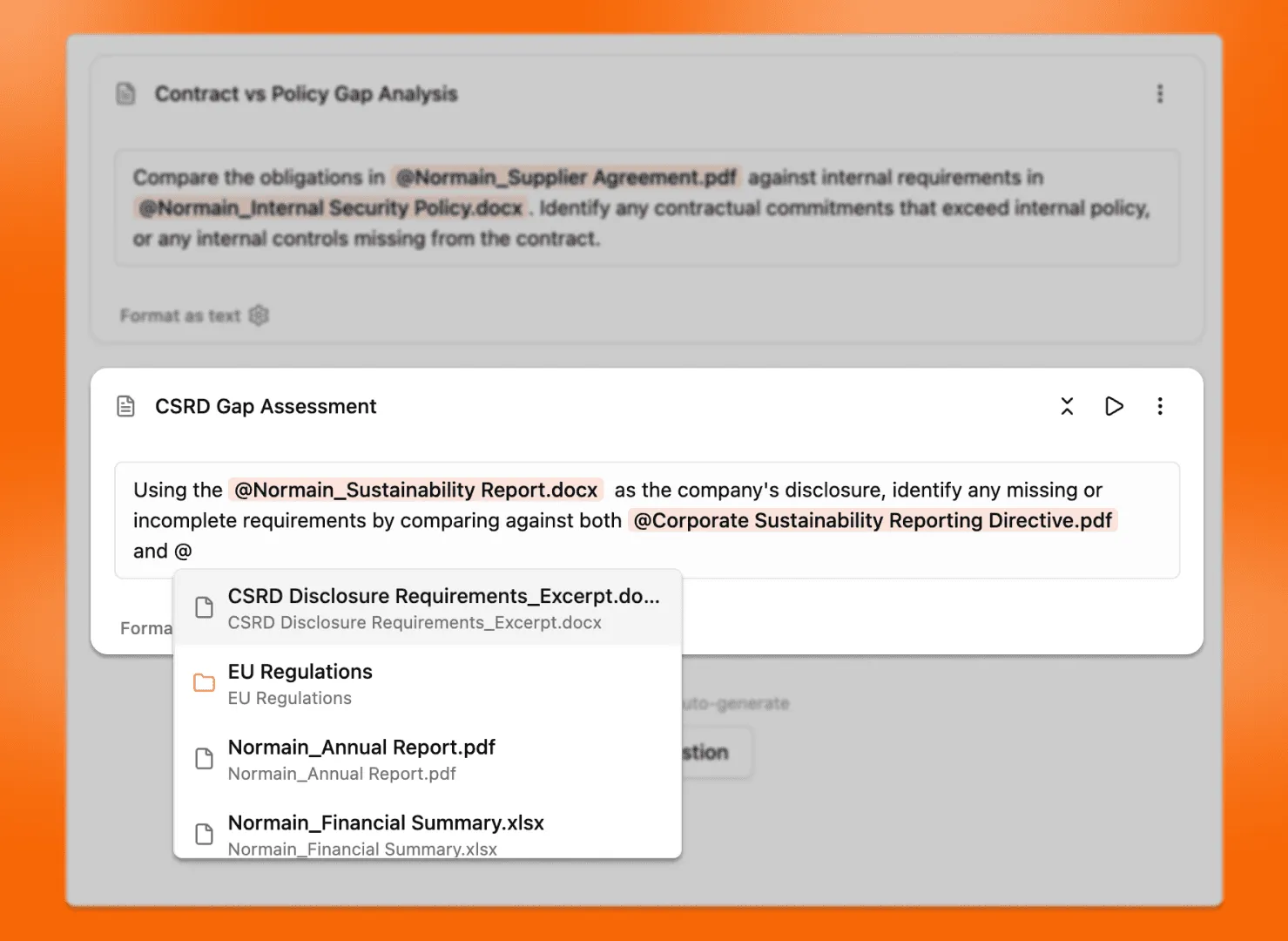
You can tag several insights at once. When you reference another insight, its answer is pulled into this prompt as context.
Examples:
- “Using the risks in @Key_Risks, assess which are adequately mitigated in the policy documents.”
- “Summarise the gaps found in @CSRD_Gap_Analysis and propose next steps for each.”
- “Compare KPIs in @Client_ESG_Metrics.xlsx to targets in @Industry_Benchmark_Table.xlsx. Flag any KPI below benchmark and explain the gap.”
Formatting outputs
This section is only relevant for Extractions.
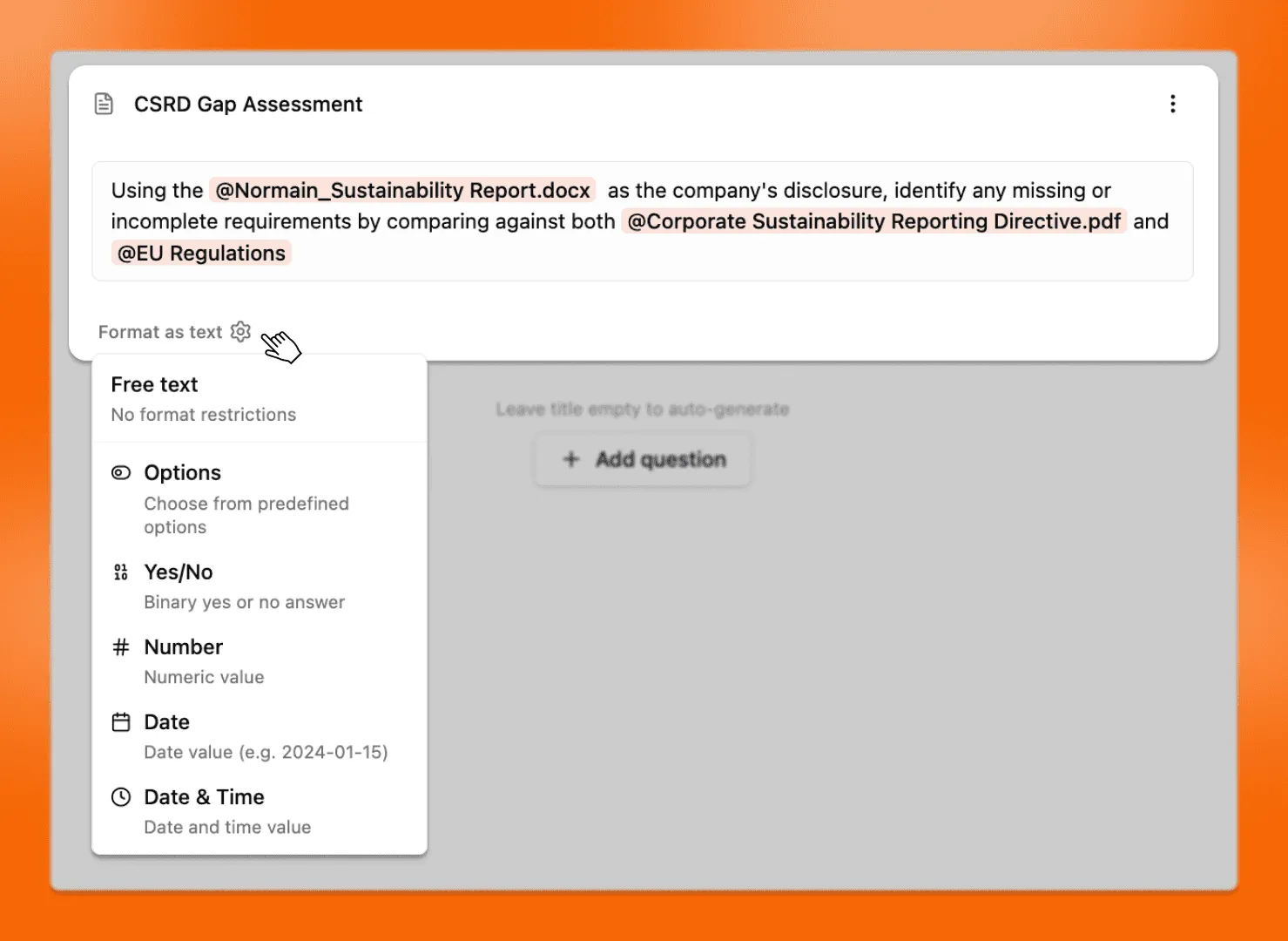
Set the format for each insight so the answer comes back the way you need it:
- Free text - the default. The answer comes back as written, with no fixed format. Best for open-ended answers like summaries or explanations.
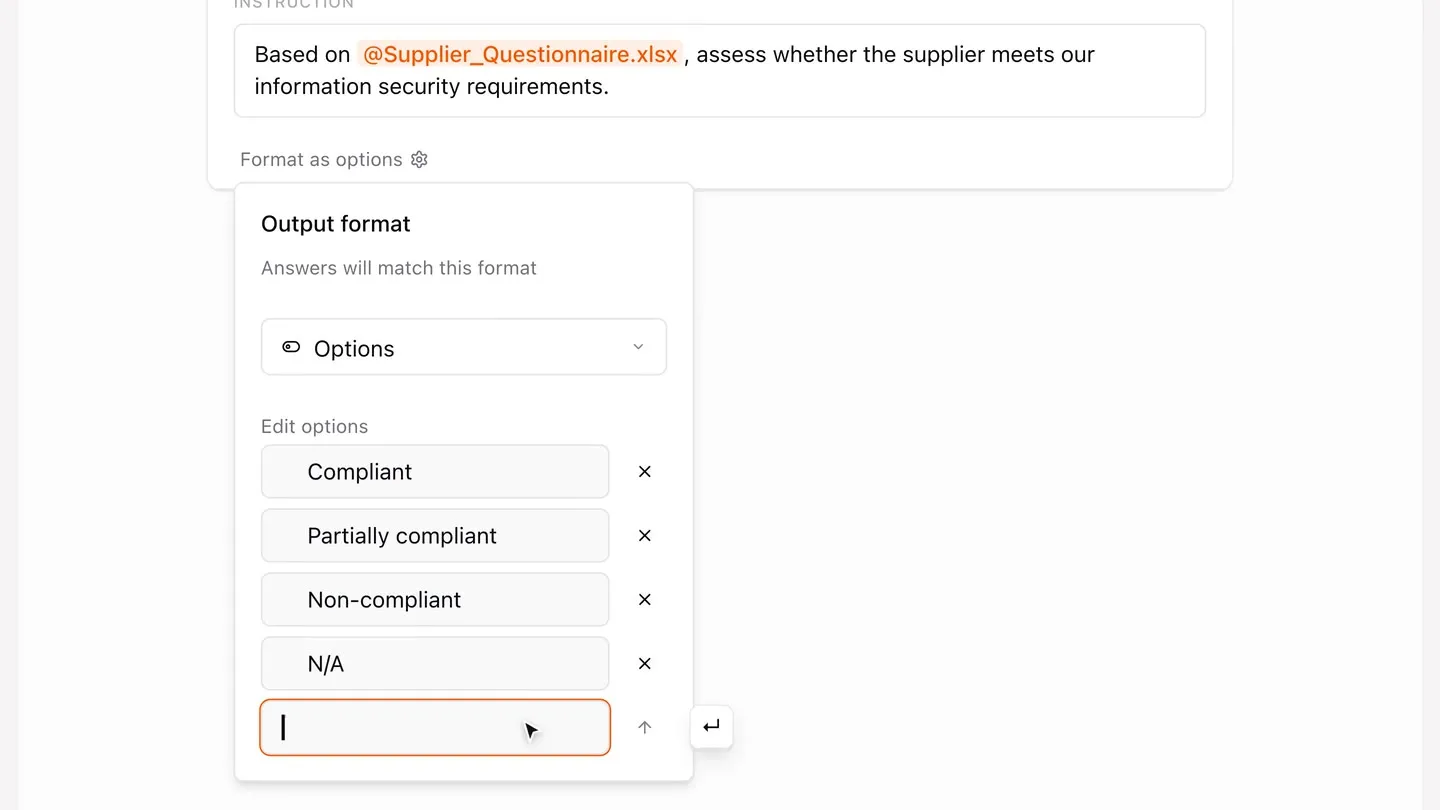
- Options - the answer is always one value from a list you define, for
example “compliant”, “partially compliant”, “non-compliant”, or “N/A”. Best
for when you want a consistent set of categories you can filter and count:
- Open the insight’s format settings and select Options.
- Type each allowed value and press Enter to add it (at least two).
- Normain returns exactly one of the listed options for every answer.
- Yes / No - insights come back as either a simple yes or no. Best for quick pass/fail or present/absent checks.
- Number - a number on its own, so you can total, average, or compare across rows.
- Date - a single date in the format YYYY-MM-DD, so answers sort and filter by date.
- Date & time - a date together with a time, for timestamps.
Run conditions
This section is only relevant for Extractions.
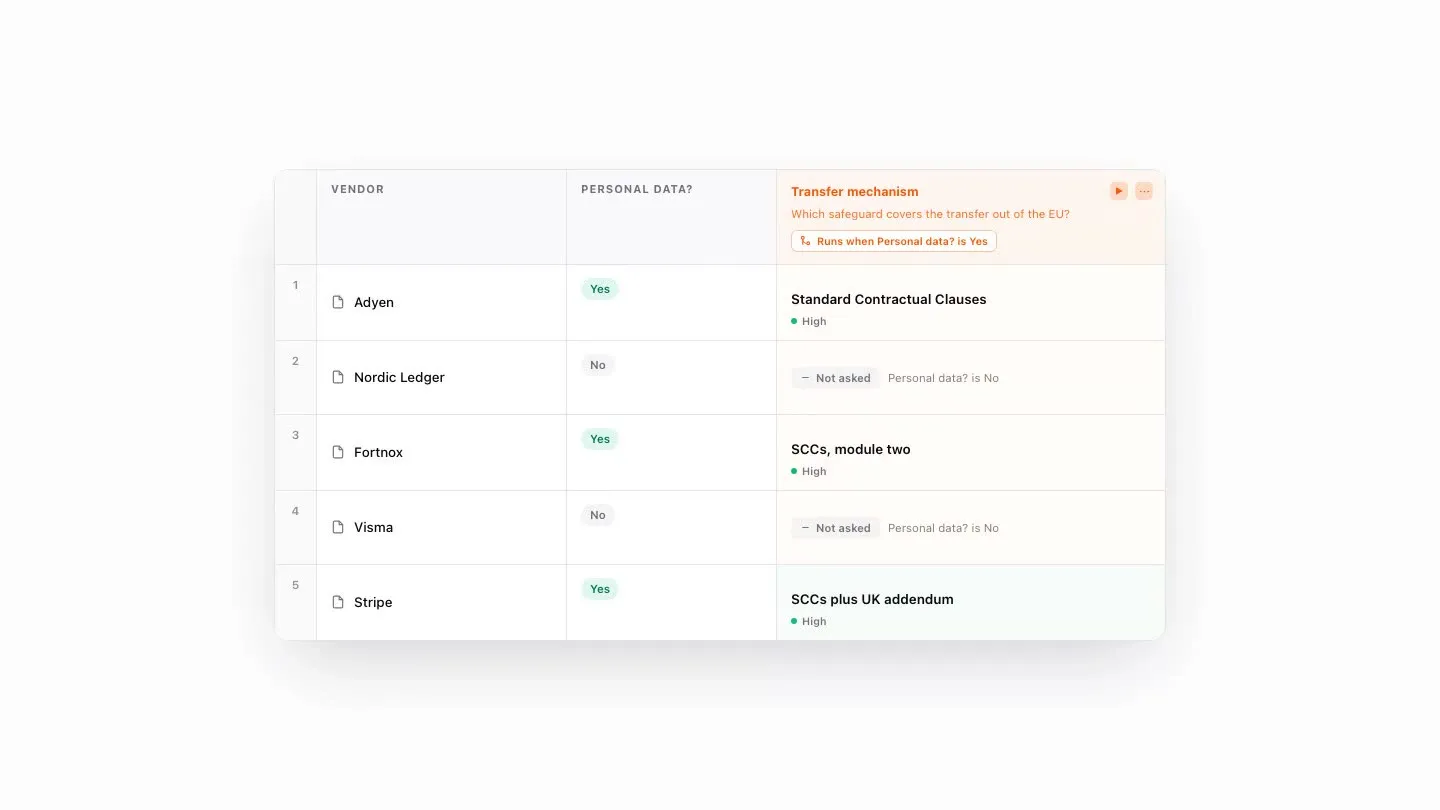
A run condition tells Normain to generate an insight only for rows that match a rule. This saves credits, since you are not paying to run an insight on rows where it does not apply.
A condition references another insight (or, in spreadsheet mode, an input column) and uses one of these operators:
- is - runs the insight when the referenced value equals a value you specify.
- is not - runs when the value does not equal a value you specify.
- is empty - runs when the value is empty.
- has any value - runs when the value is not empty.
For example, “only run the Detailed risk assessment column when the Risk level is High.” Rows that don’t match are marked Skipped, with a plain-language reason shown in the cell, such as “Risk level is High”.
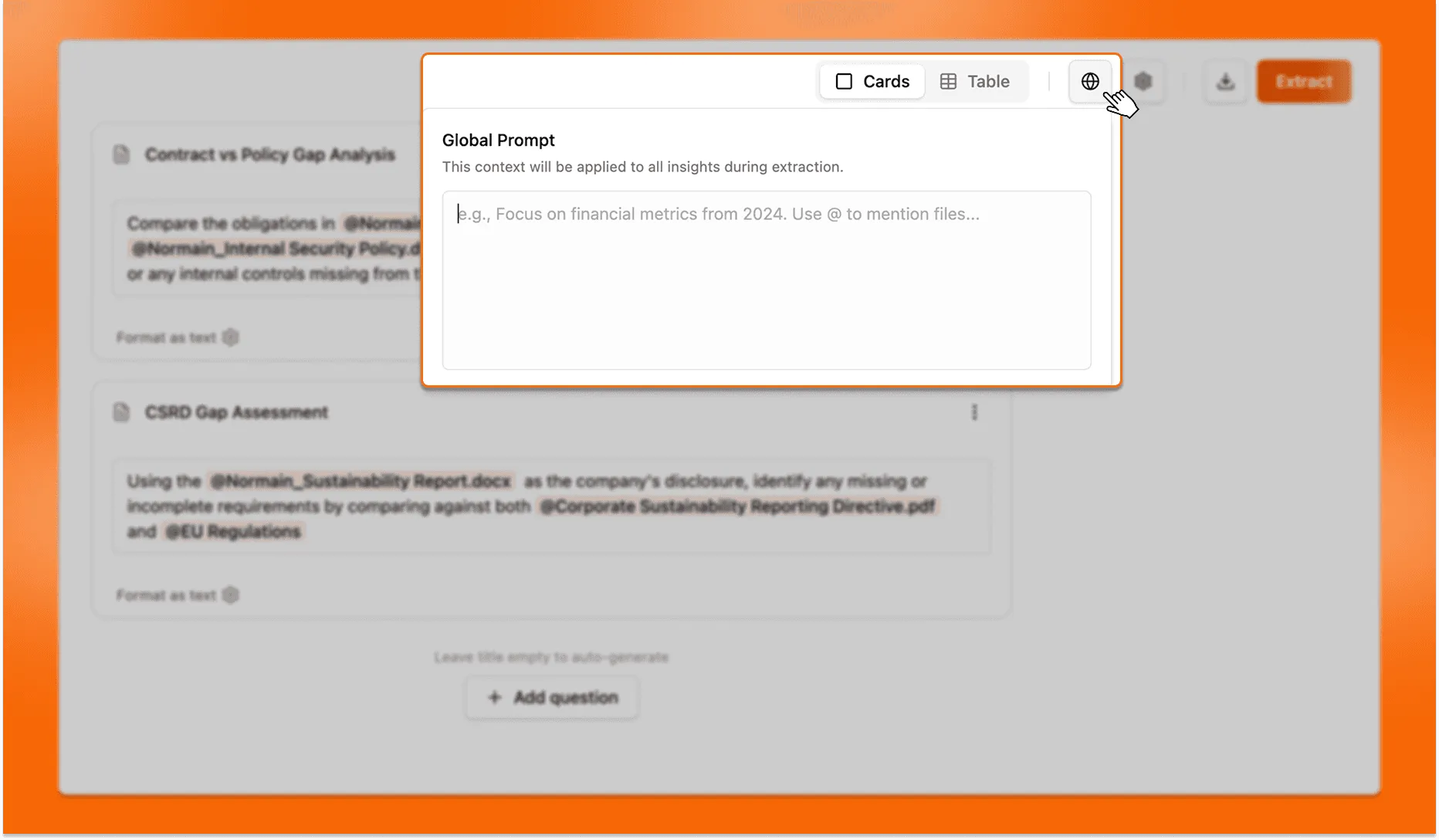
Global prompt
The global prompt is one instruction that applies to every insight in an Extraction. You set it once, and Normain reads it alongside each insight’s own prompt, so shared context does not have to be repeated on every question. Open it from the global prompt field at the top of your insights, and edit it whenever you need to.
What to put in it: use the global prompt for anything that holds across the whole Extraction.
- Scope - which documents and data Normain should consider.
- For example, “Only use 2024 figures,” or “Ignore anything marked draft.”
- Context and assumptions - the background that frames every answer.
- For example, “All documents are annual reports for Company X,” or “Treat the client as the buyer in this transaction.”
- What to prioritise or ignore - where Normain should focus its attention.
- For example, “Focus on ESG disclosures and skip the financial statements.”
- Format and language - how every answer should come back.
- For example, “Keep every answer to one sentence,” or “Answer in Swedish.”
- Terminology and tone - the wording and style your team uses, so every
insight follows it. Tag a reference document with
@when you want Normain to match its style.
The global prompt sets the frame; the insight prompts pull out the specific answers. Because it is part of the setup, it travels with a template and is reused every time.
Prompt snippets & library
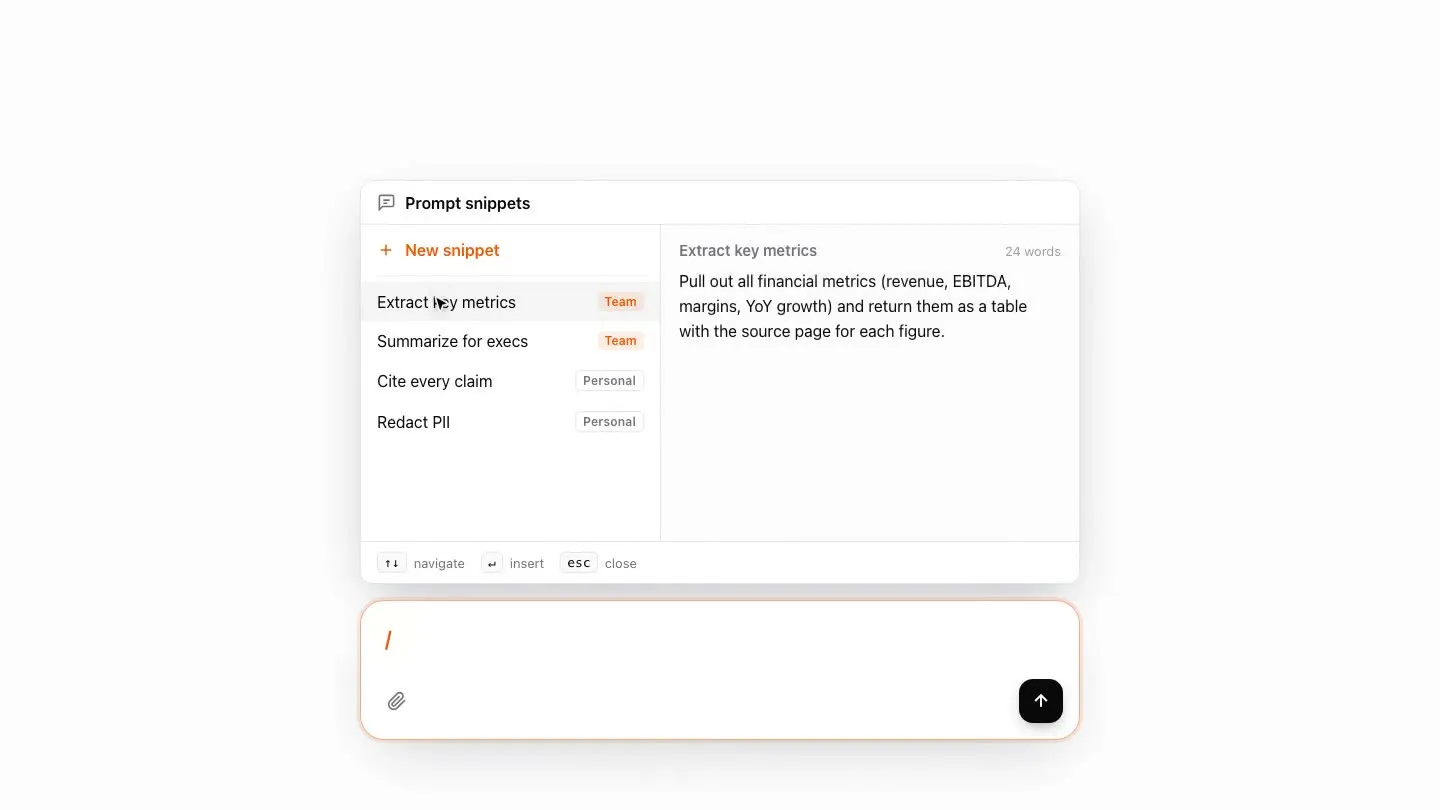
For each column or question in a project, you write a short instruction that tells Normain what to look for in your documents. If you find yourself writing the same instruction again and again across projects, you can save it as a snippet and reuse it whenever you need it.
Snippets are managed on the Prompts tab of the Library, grouped into Team (shared) and Personal sections.
Save a snippet
While writing or editing an instruction, save the text you want to keep as a
named snippet by typing /. It is then stored in your snippet library, ready to
use in any project.
You can also create one directly in your Library tab, found in the sidebar. Create one with New prompt, give it a title and prompt text, and tick Share with team to make it available to everyone.
Insert a snippet
While writing an instruction, type / to open the picker, choose the snippet
you want, and Normain drops its text straight into the field.
Running a project
Once your files and questions are ready, run your project to get your insights.
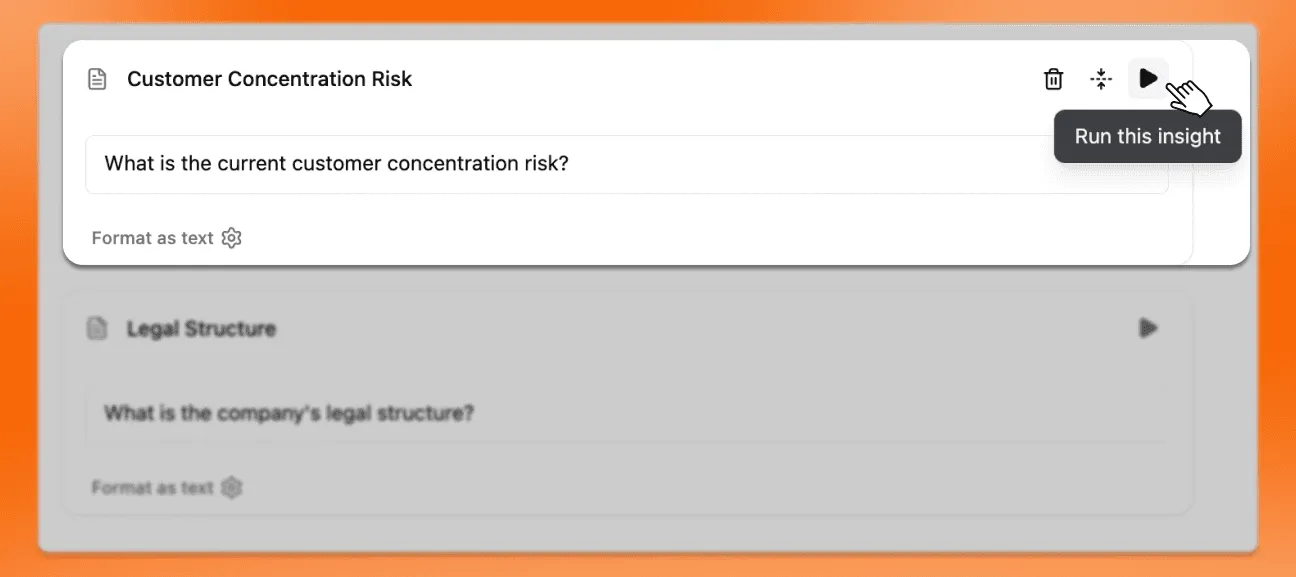
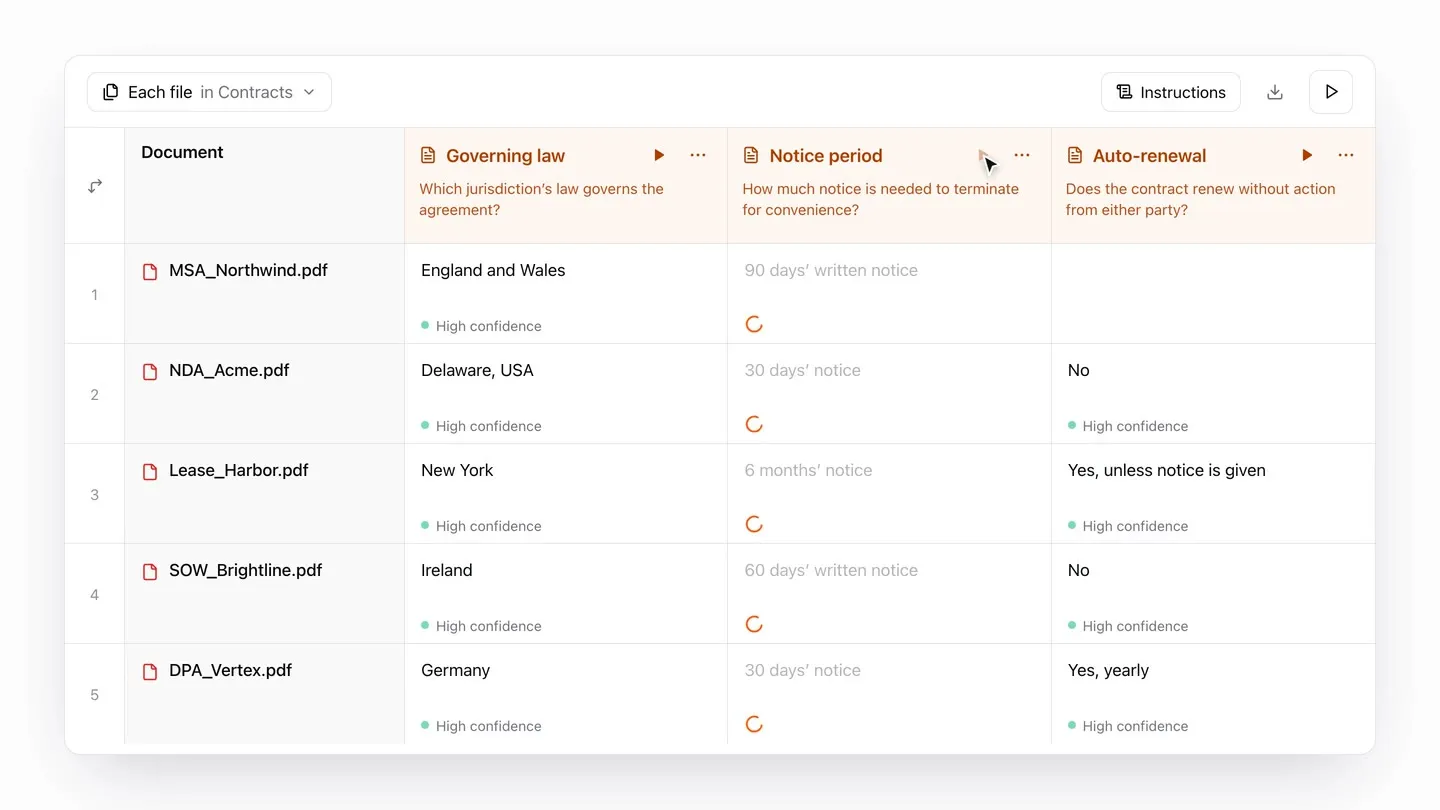
In an Extraction, run the whole thing at once, or just part of it:
- A selection of rows - run a chosen range (for example, the first row, or rows 2-10).
- A whole column (in a Spreadsheet Extraction) - run insights across every row of that column.
- A single cell or card - run just one specific insight.
In a Notebook, you run by step instead:
- Run every step - run the whole Notebook from top to bottom.
- Run out-of-date steps - re-run only the steps whose inputs changed since the last run.
- Run failed steps - retry just the steps that did not complete.
- Run from the open step down - start at the step you have open and run everything after it.
Credit usage
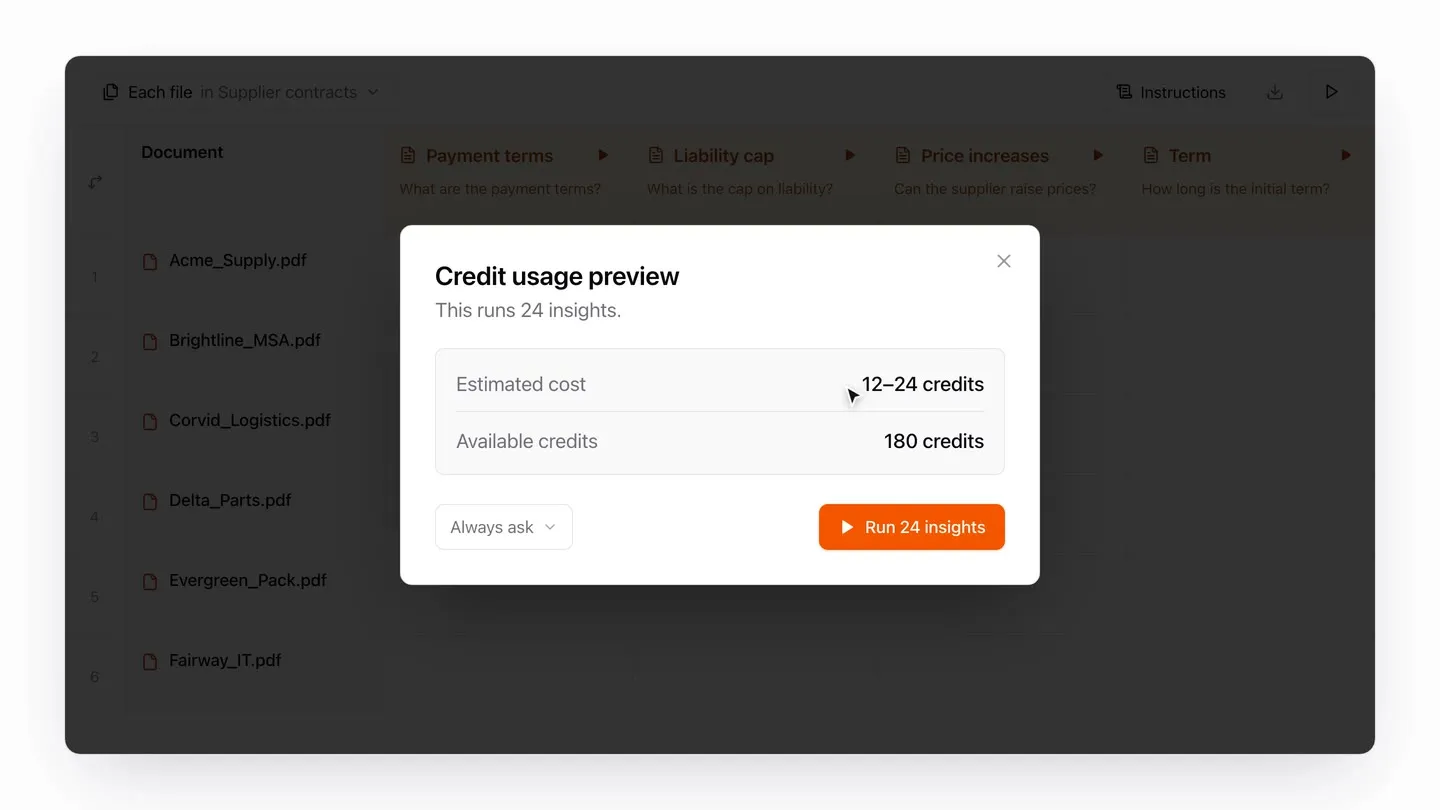
Before a run, Normain shows a credit usage preview: how many insights the run covers, an estimated cost range in credits, and your available balance. If you don’t have enough credits, Normain warns you and the run stops when your credits run out.