
Creating a Project
How to create your first project and choose the setup that best fits your work. Adding your documents and questions comes next, in Adding sources and insights.
What a project is
Everything you do in Normain lives inside a project. A project can either be an Extraction, which is a set of documents plus the analysis you run on them, or a Notebook, a set of documents and a sequence of analyses you run on them, each one building on the last and resulting in a deliverable, the finished document. See Key concepts for how these fit together.
A quick tour of a project
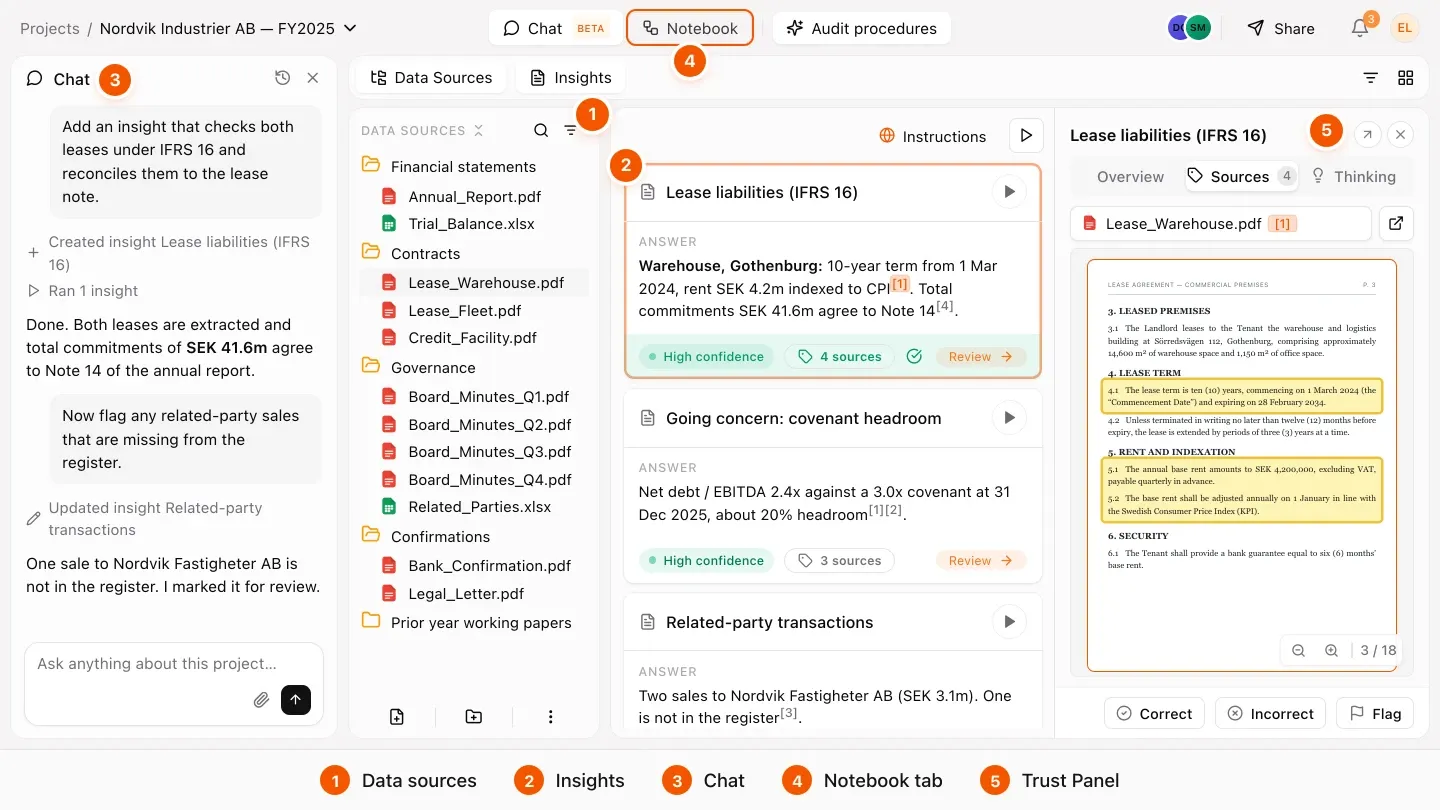
A project is organised into a few areas. Your documents and other data sources sit on one side. The questions you ask, and the answers Normain returns, called Insights, fill the central grid. The chat can be opened at any point to build a project for you or refine it as you go. The Notebook tab lays out the steps in order, and the Trust Panel opens on any Insight so you can see its citations, confidence score, reasoning and more. The chapters that follow cover each area in detail.
Choosing an Extraction type
When you set up your first Extraction, you choose its Extraction type. The Extraction type shapes how your documents and questions are laid out, and how Normain returns the answers. You can start with one Extraction and grow into a multi-step Notebook later.
Simple Extraction
One analysis across your documents.
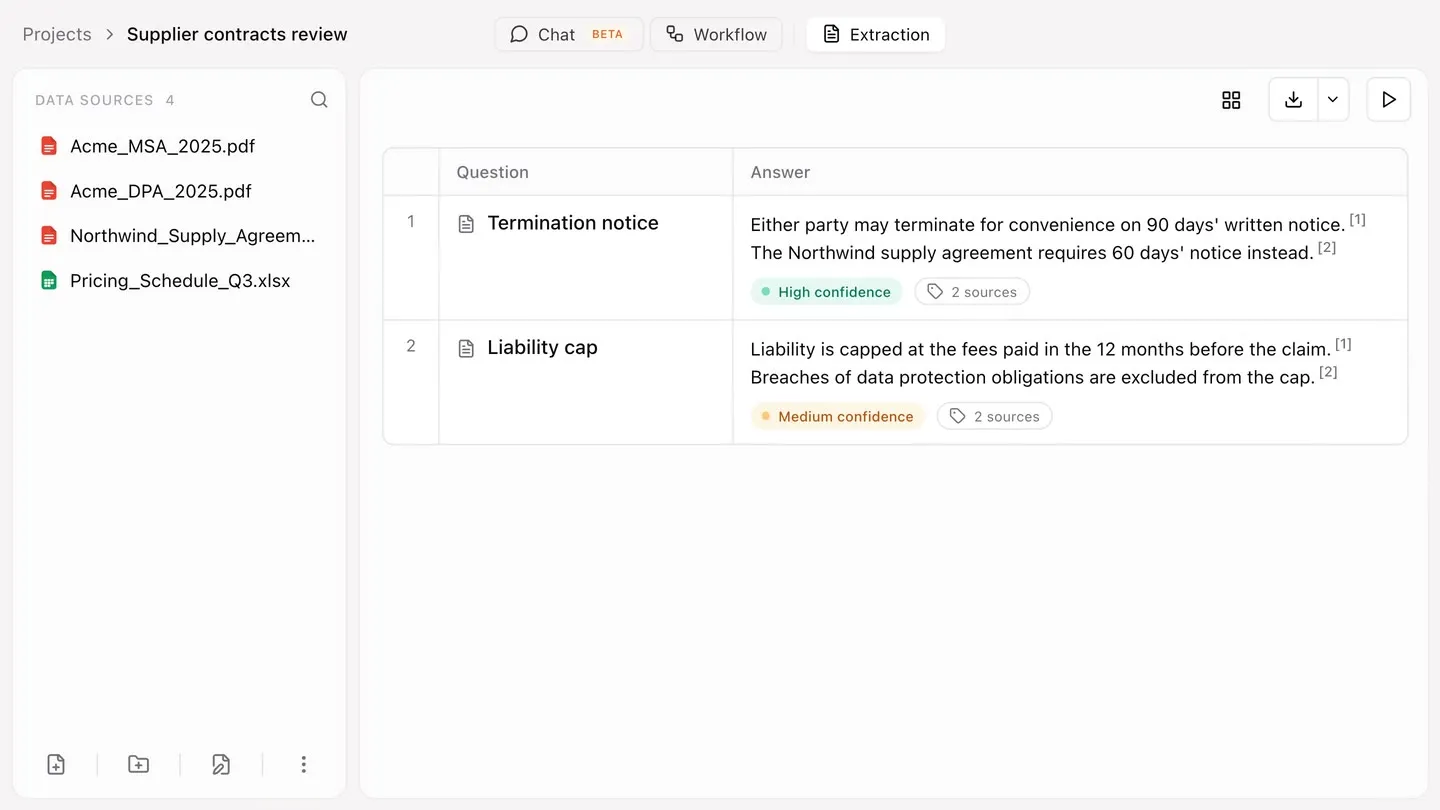
In a Simple Extraction, you upload a set of documents, add your questions, and Normain answers each one using all of the sources together. You can review the results as cards or in a table.
A Simple Extraction is best for when you want a series of questions answered based on a single document, or a related set of documents.
Setting up a Simple Extraction
- Click
Create a new projectand choose Simple. - Add your data sources.
- Add your questions, one at a time or in bulk by pasting a list or uploading a file for Normain to read and pull questions from (see Adding sources and insights).
- Click
Extractto get your Insights, shown as cards or in a table.
Repeat Extraction
The same questions, applied across many items.
In a Repeat Extraction, you point Normain at many files or folders, and it works through the same set of questions for each one. The results come back as a table with one row per item, which you can sort, filter, and compare.
A row is one item Normain analyses, shown on its own line in the results table. It’s up to you what counts as one row:
- Item - a mix of files and folders, each becoming one row.
- File - each individual file becomes its own row.
- Folder - each folder becomes one row (one case), even if it holds several files.

Setting up a Repeat Extraction
- Click
Create a new projectand choose Repeat. - Add your data sources.
- Choose the item type (Item, File, or Folder) to set what counts as one row.
- Set the scope, the files or folder Normain draws from.
- Add your questions, one at a time or in bulk by pasting a list or uploading a file for Normain to read and pull questions from (see Adding sources and insights), then run to get one row of Insights per item.
A Repeat Extraction is best for processing at scale, running the same set of questions across many files, folders, or cases at once.
Spreadsheet Extraction
Build your own spreadsheet.
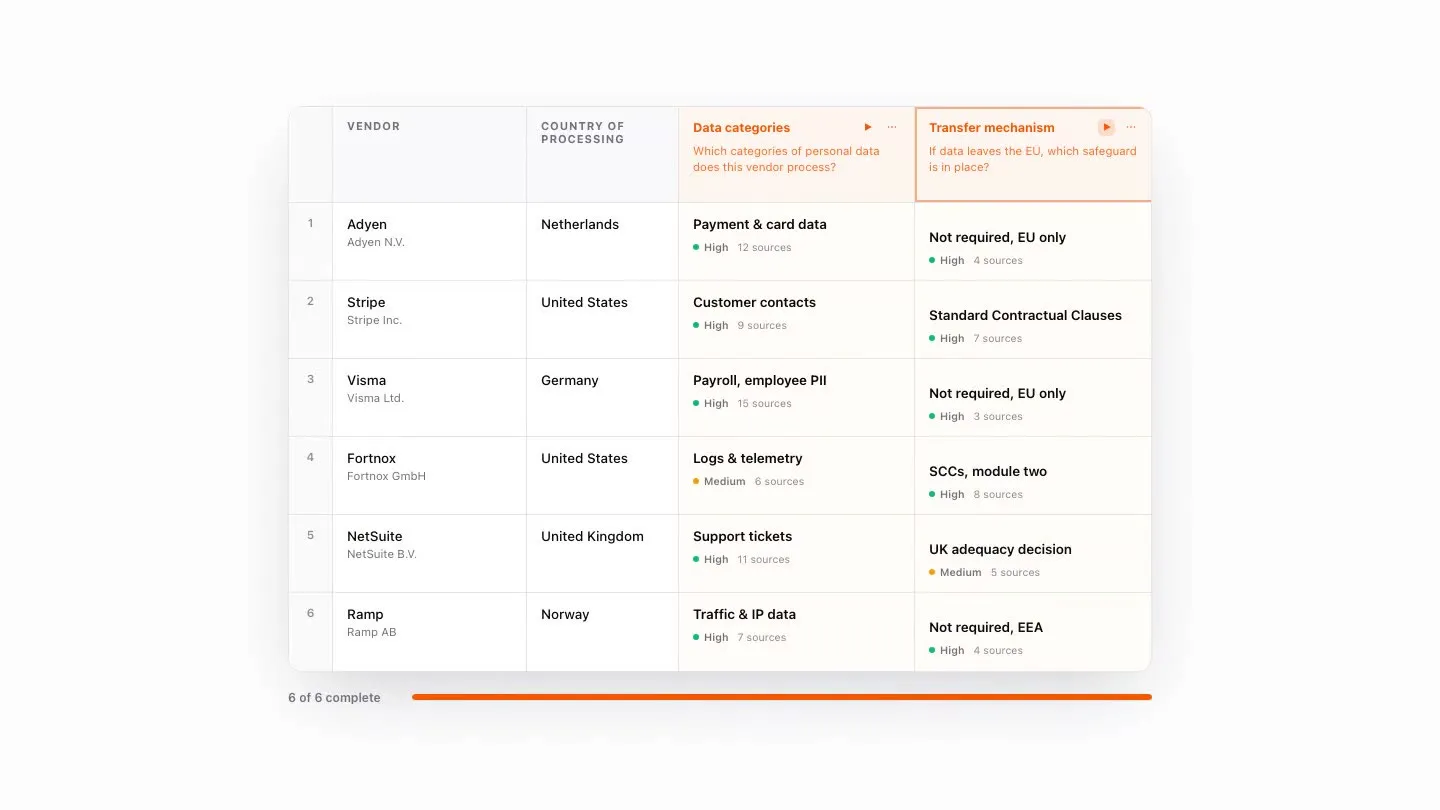
In a Spreadsheet Extraction, you define the columns yourself in a flexible, multi-sheet layout. Some of your columns might hold existing data (input columns), and other columns are those you want Normain to fill in. The data in the input columns can feed the analysis when you tag those columns in a prompt. Normain works through the spreadsheet one row at a time, generating Insights for every cell.
Setting up a Spreadsheet Extraction
You can set up a Spreadsheet Extraction in two ways. Build it from scratch in Normain, defining every column yourself, or start from a file you already have. To start from a file, either copy and paste the data straight in, or upload the file and let Normain read it to pull out the column headers, existing data, and structure. Either way, the rest of the setup is the same.
- Create a new project and choose Start from Spreadsheet.
- Choose how to start: build your columns from scratch, copy and paste data from an existing spreadsheet, or use the From file option to begin from an Excel file your team already uses.
- Review the columns and adjust any heading.
- Leave columns you want to use as inputs as they are. For columns where you want Insights generated, set the column to an Insight column and add a short instruction telling Normain what to look for in it. Remember to tag specific input columns in the instructions if you want Normain to take those into account when generating your Insights.
- Add the sources you want to analyse, then run the project to get results with citations and a confidence score for every answer.

Uploading an Excel file replaces the current spreadsheet. The result is a starting point, not a locked layout: you can rename columns, add new ones, remove those you don’t need, and refine the instruction behind each column at any time.
A Spreadsheet Extraction is best for when you work from an existing template, such as a scoring template or questionnaire, or when you have input data that should apply row by row and you want full control over the structure.
Notebooks
Build your whole method as a sequence of steps.
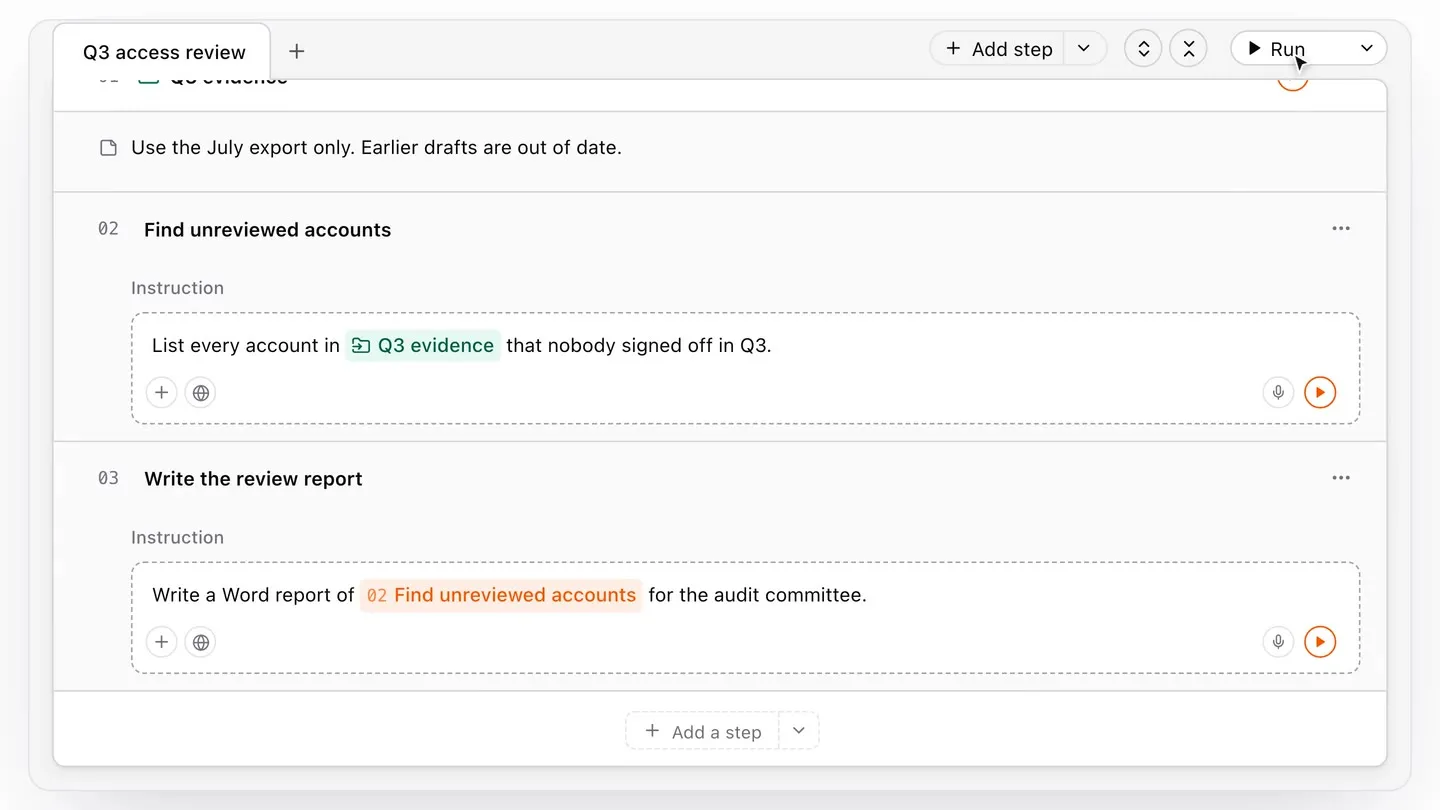
A Notebook is how you handle work that takes more than one step. Instead of a single Extraction, you break the job into steps and describe each one in plain language, the way you would for a colleague. Each step keeps its own instruction, files, and result, which lets you check every part. Steps also chain together, with later steps building on what an earlier one produced, through to a finished deliverable, with every answer traceable to its source.
A step can be any of a few types:
- Agent step - you describe the work and an agent carries it out, able to
take on pretty much any kind of analysis, such as:
- reconciling every clause in a 200-page agreement against your control framework and flagging the exceptions,
- building an audit programme from a regulation and then testing each control against the evidence behind it,
- or scoring a company against the CSRD requirements and writing up each gap with its rationale.
- Input step - gathers the files or details Normain needs you to add.
- Note step - guides whoever runs the Notebook next.
- Deliverable step - produces the finished document.
- Extraction step (coming soon) - an analysis that takes the shape of an Extraction, whether Simple, Repeat, or Spreadsheet.
Setting up a Notebook
- Click
Create a new projectand start with an empty Notebook, the default for new projects. - Add your steps and put them in the order you want them to run.
- Set each step to the type you need and describe what it should do. In its instruction you can point to a file, a folder, or an earlier step, which tells Normain to use what that step produced. For how to add and tag sources, see Adding sources and insights.
- Group related steps into tabs, like sheets in a workbook, and drag steps to reorder them.
- Run the Notebook. Normain works out the order from how the steps depend on each other, runs each one, and shows its reasoning, citations, and confidence score as it goes.
- Finish with a deliverable that builds on your own template or one from scratch, in whatever format you need, such as Word, PowerPoint, Excel, a web page, and more.
- Scale it: save the Notebook once as a template, and anyone on your team can run it for the next engagement of that kind. Just switch out the files.
A Notebook is best when your work takes several steps, from gathering documents through analysis to a finished report, and you want to capture that method once and run it again for the next engagement. For the full guide to building and running them, see Notebooks.
Start from chat
Describe what you need and let Normain build it.
Instead of choosing a format up front, you can open the chat and describe what you want in plain language. Normain picks the best project setup and Extraction type for your task, drafts the questions (or pulls in ones you already have in a file), and runs them for you. You can drop your documents straight into the chat and it uploads them. From there you refine the project like any other.
Best for when you would rather describe the outcome than configure it yourself.

Which format should I use?
Organising projects with folders
As your workspace grows, you can create your own folders to organise projects, for example one folder per client, engagement, or team.
- Click
New folderand give it a name. - Drag projects into the folder, or use Move to folder from a project’s menu.
- Nest folders as needed, and switch between grid, compact, or tree views to browse.
Folders are for organising your projects. They don’t change how any project runs.