
Validating Your Results
How to review, validate, and collaborate on your answers in the Trust Panel once a project has run, and how to export them when you are done.
Reviewing your results
Reviewing is where you go through your results and decide what holds up. Normain lays them out so you can move quickly across the whole set and check any single answer in depth.
How your results are displayed
How results are shown depends on how you built the project. In an Extraction you read them as cards or a table and can switch between the two: Simple opens either way, while Repeat and Spreadsheet open as a table, built for comparison and scale. A Notebook is shown as its steps and tabs, with each step’s result in place.
Card view
The default. Card view pulls together every answer across your selected sources and shows each one in its own document-style card.
Best for:
- reading answers in a document-style layout
- analysing several documents together
- comparing and cross-referencing across files
- one-off work where the full set of sources matters
Table view
A spreadsheet-style view of your project, built for speed and scale. Instead of reading one answer at a time, you see everything in one grid, with questions as columns (or rows) and answers in the cells, so you can scan, compare, and spot gaps across the whole project.
Helpful controls: transpose rows and columns, resize columns, and adjust row height.
Best for: working with many questions at once, and Repeat mode across multiple files or folders.
Repeat mode in table view
In table view, Repeat mode applies the same set of questions across many items at once and returns structured results at scale. Repeat applies one project to:
- multiple individual files, where each file becomes a new row, or
- entire folders, where each folder is one case (for example, one client), even when it holds several files.
For example: process 100 invoices so each becomes a row, with columns such as vendor, amount, and due date, or run the same due-diligence questions across 20 folders.

Validating insights in the Trust Panel
Normain is built for work where trust matters, and every answer is easy to verify. Open any answer to review it in the Trust Panel, where the reasoning, the citations, and the full history behind it sit together. The tabs below appear in the order you meet them in the product.
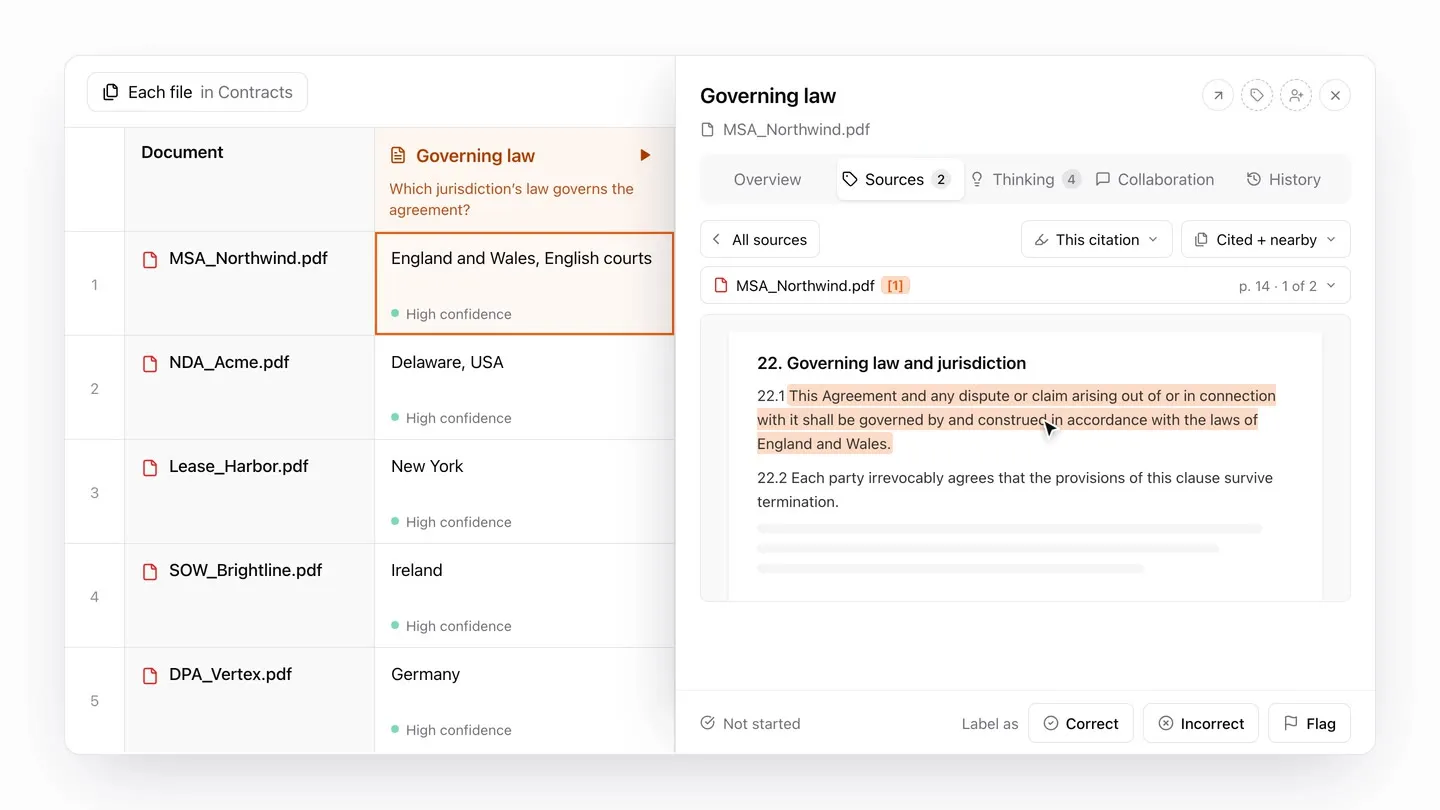
Overview
The Overview is the first thing you see. It gives a short, plain-language read on the answer and how reliable Normain thinks it is. It is the quickest way to judge an answer before you go deeper.
Source references
Every answer carries a citation back to the exact place it came from, letting you fact-check everything in seconds against the original source. A citation shows:
- the document name
- the exact page, slide, or sheet
- a preview of the supporting passage
From a citation you can copy or save a picture of the source with the relevant passage highlighted, or open the document itself to read it in full.
Thinking steps
The Thinking tab shows the full chain of steps Normain worked through to reach the answer, from the sources it opened to the checks it made along the way. Open it when you want to see exactly how a conclusion was formed, not just the final result.
Validation and collaboration
The Collaboration tab is where a team validates answers together. Once you have checked an answer, mark it as correct or incorrect, or flag it for a colleague. You can:
- Validate answers: mark each one correct or incorrect, or flag it for review, right where you are working. Marking changes the answer’s colour in the results, letting the whole team see at a glance what is checked and what still needs attention.
- Work in bulk: select several answers at once to mark, assign, or flag them together.
- Assign answers: hand an answer to the right colleague, who is notified when it lands with them.
- Leave comments: add a note to any answer and @-mention a colleague to bring them in.
- Track progress in real time: follow how far the project has got as the team works through it.

History
Every answer keeps a full history of its earlier runs. Each time an answer is produced again, whether you re-run a single cell, redo a step, refine a question, or run a whole column, the previous version is saved rather than replaced. You always have a complete trail of how the answer changed, and nothing is lost.
Open the History tab to see each earlier version, with the most recent at the top. Select one to review it, and choose Set as active to make it the answer Normain shows and uses from then on. Because nothing is overwritten, you can re-run and experiment freely: if a new run turns out weaker than an earlier one, the earlier answer is a couple of clicks away.
Refining and organising your results
Beyond verifying a single answer, there are a few ways to act on your results: go deeper on an answer, improve it, edit it yourself, and organise the whole set for review.
Chatting with the answer
Open any answer and chat with it to go deeper without re-running anything. Ask how it reached the answer, what a figure refers to, where in the document it came from, or anything else you want to dig into, going deeper with each follow-up, and the chat replies using that answer and its sources. It is the quickest way to sanity-check a single answer.
Re-running with feedback
When an answer is not quite right, re-run just that one rather than the whole project. Re-run it as is, or re-run it with feedback: tell Normain what to change and it tries again using your note, keeping your earlier answer so you can compare the two or go back.
Common feedback instructions:
- search more thoroughly
- make it shorter
- make it more detailed
- write your own instruction
Editing a result
Sometimes you want to adjust an answer yourself, for example to match your team’s wording or fix a small detail, without re-running anything. Open the answer, select the edit (pen) icon, make your change, and confirm. Your edit is saved in place and shows everywhere that answer appears: card view, table view, and any deliverable it feeds into.
Your original is never lost. Normain keeps the answer it first produced, and the citations stay attached as you edit, so the answer is still traceable back to its source. You can restore the original at any time from the History tab.
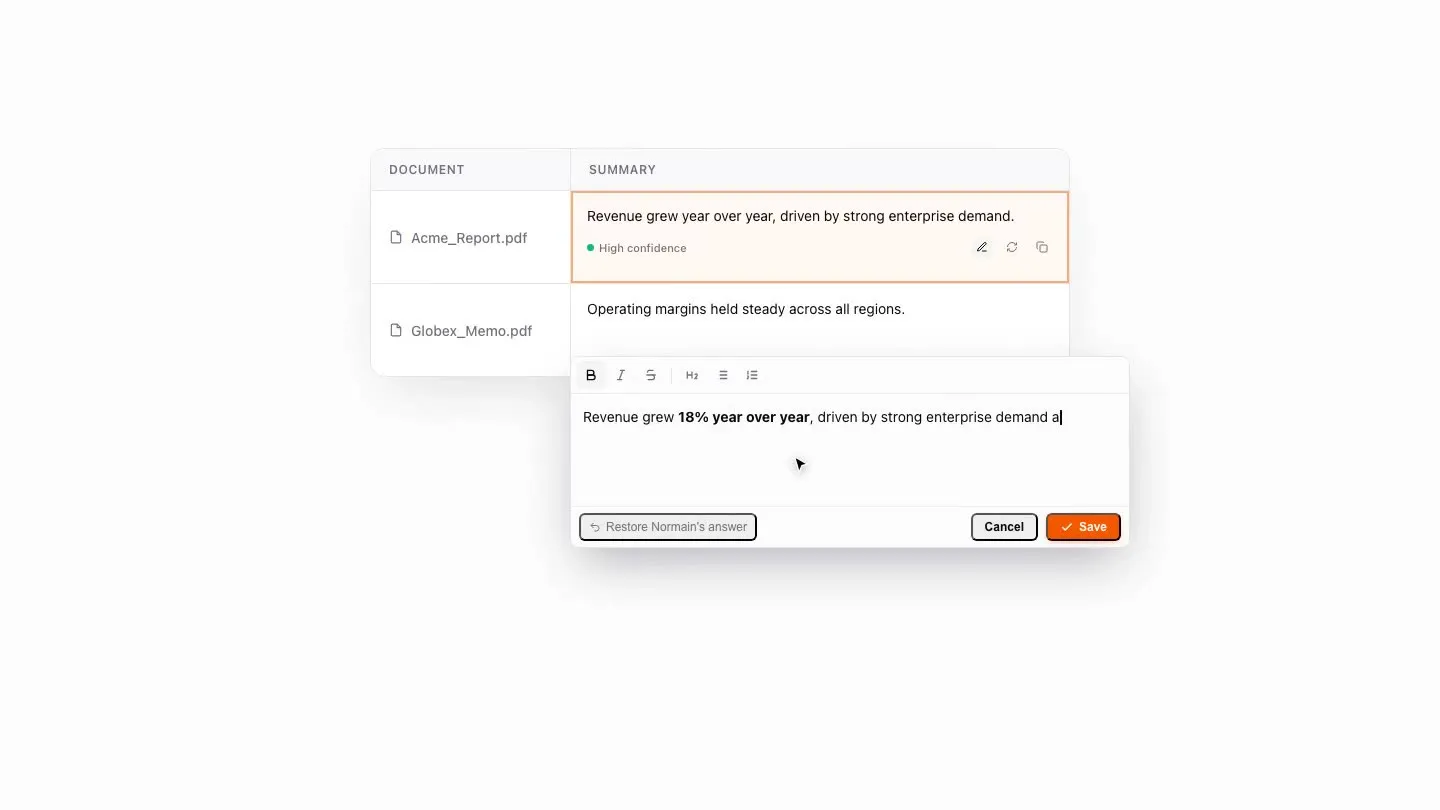
Editing a result in place is an Extraction feature for now, and is coming to Notebooks soon.
Filtering your results
As a project grows, filtering cuts a long list of answers down to the ones you care about right now. You can filter by:
- Assignee: who an answer is assigned to.
- Review status: where an answer stands, such as marked correct, incorrect, or not yet reviewed.
- Comments: whether an answer has a comment, so you can review discussion threads together.
- Confidence: how reliable Normain thinks each answer is. Filtering by confidence lets you start where it counts, with the lowest-confidence answers first.
- Flagged status: whether an answer has been flagged for a colleague to look at.
To filter, open your results, open the filter menu, and choose what to filter by. Your results update to show only the matching answers; add more than one filter to narrow further, and clear them at any time. You can also collapse or expand all answers to move through a long list quickly.
Adding labels
Apply a label to an answer to record where it stands in your review, such as correct, incorrect, or flagged. Labels let the whole team see at a glance what has been checked, and they drive the filtering above, so you can pull up everything still to review in one place.
Exporting
When your results are ready, you can take them out of Normain to share or finish the work elsewhere. In an Extraction you export the answers to Word or Excel; in a Notebook, you export the finished deliverable itself. You also choose exactly how your sources come through, from footnotes beside each answer to their own column in a spreadsheet.
The exported file is fully editable, like any other spreadsheet or Word document.
