
Quick Start
Get up and running in minutes. This covers the essentials, and the chapters that follow go deeper on each capability.
This page walks you through one full analysis from upload to export. Normain can do much more, and later chapters go deeper on each capability, but everything you need to get a first result is here.
Watch the interactive demo to see a project in practice, from upload to export.
The steps behind every analysis
Whether you are running a single analysis (an Extraction), or building your whole workflow as a series of steps (a Notebook), the same procedure sits behind the work: add your data sources, define your insights, extract and validate, and export. To familiarise yourself with the terminology, visit Key concepts.
Set up your first project
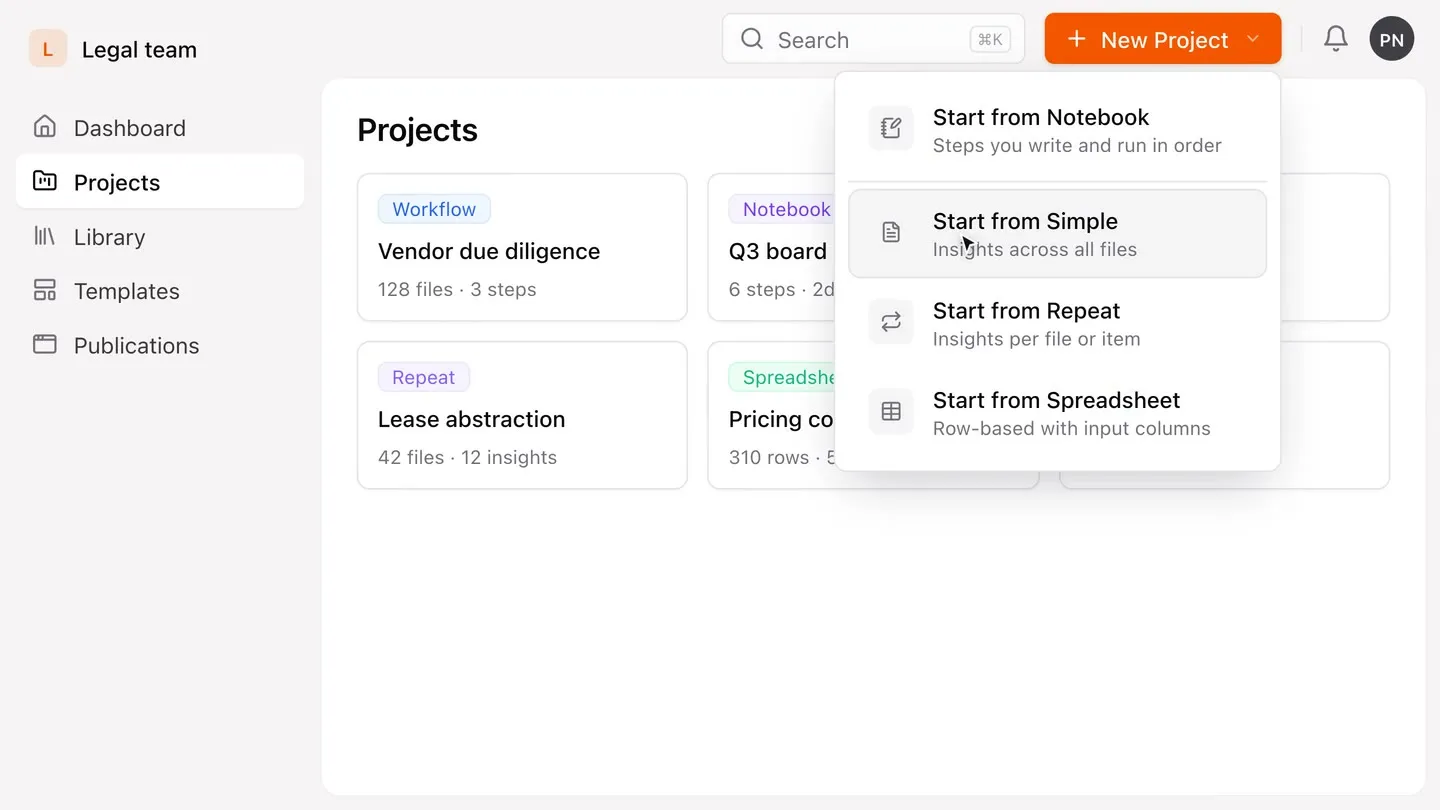
Start by creating a new project for the engagement at hand, then choose how to set it up.
For a single analysis, pick an Extraction type:
- Simple - ask your questions across one combined set of documents.
- Repeat - run the same questions across many files or folders, one row each.
- Spreadsheet - build your own grid with input columns you provide and answer columns that build on them, cell by cell.
For multi-step work, build a Notebook:
- Break down your method into a sequence of plain-language steps, each one building on the last, right through to a finished deliverable at the end.
Not sure yet? Start from chat and describe what you want, and Normain sets it up for you.
This guide follows a Simple Extraction, the easiest way to begin.
For the full detail on each analysis type and which suits your work best, read on in Creating a project.
Step 1 - Add data sources
Normain works with both uploaded files and sources connected through file-storage integrations. There are several ways to bring data in:
- Upload files - drag and drop or browse (PDF, Word, Excel, PowerPoint, images, text, CSV, Markdown, JSON, TIF, SIE and email files).
- Connect cloud storage - Google Drive, SharePoint, and Box. We continuously add integrations, request yours.
- Add links (URLs) - paste a web page you want to extract from. Normain reads the specific page you provide; website-wide crawling is in development.
- Web search - when a question needs more than your uploaded sources, toggle it on to let Normain search freely for information from the web.
- One-off text - type or dictate a short text source directly, without uploading a file.
- Custom API - connect Normain to your own systems. Send documents and questions through the API and get back the same grounded, cited insights you get in the product.
- MCP - connect Normain to an AI assistant such as Claude or Codex to set up projects and bring in your files straight from there.
You can also save sources to your Library and reuse them later on, without having to re-upload them. Each of these is explained in full in Adding sources and insights.

Step 2 - Define insights
Insights are the core of Normain. Each one describes what you want to extract, in your own words.
- Write the question or instruction in the insights section.
- Give your insight a title, or leave it empty and Normain generates one automatically.
- Tag files or folders in a question to point Normain to the right sources.

You can also add many insights at once: paste a list of questions, or upload a file with questions or controls, and let Normain draft a starting set. Tagging and the full details are in Adding sources and insights.
Step 3 - Extract & validate
Once your files and insights are ready:
- Click
Extract. - Follow the progress in real time.
- Validate the results.
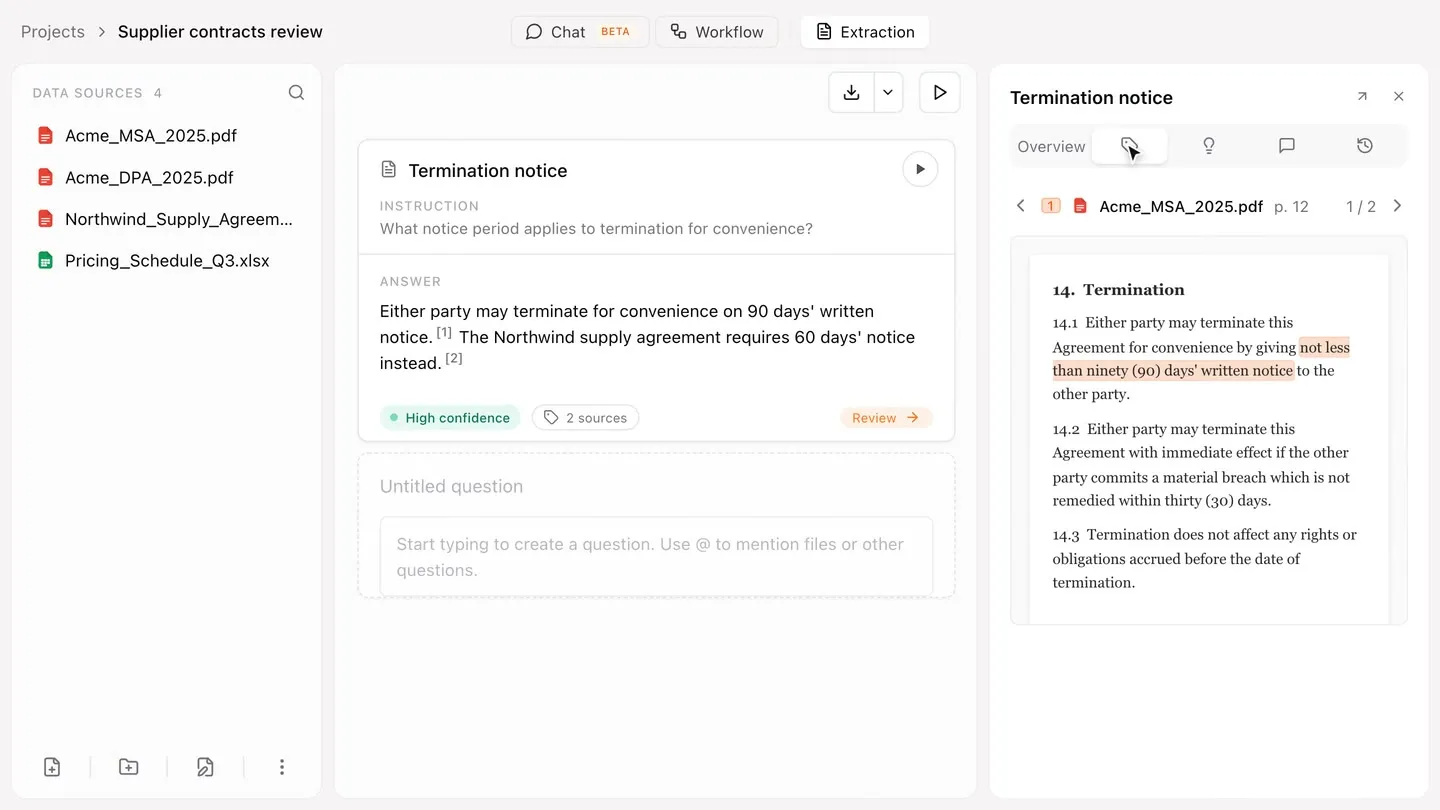
This is where Normain earns your trust: every answer is traceable, scored, and easy to verify or correct. Each insight comes with built-in trust and verification through the Trust Panel:
- Overview - a quick read on the answer, together with Normain’s assessment of how reliable it thinks the answer is
- Source references - the citation behind every answer, down to the page and exact passage
- Thinking steps - the full chain of steps Normain worked through to reach the answer
- Collaboration - tools to validate and work through answers and collaborate with your team
- History - every earlier version of the answer, easy to compare across runs and restore at any point
You can also chat with any answer to ask follow-up questions and go deeper.

This is just a first look at the Trust Panel. To unlock its full power and the complete validation toolkit, see Validating your results.
Step 4 - Export
When you are ready to share results or keep working outside Normain, click
Download to export as an Excel spreadsheet or Word document. You can choose
how citations are formatted, include them as footnotes next to each answer, and
add the instructions that were used for each insight.

This is an Extraction in its simplest form. Continue to Creating a project for a deep dive on all Extraction types.
Notebooks: run a whole method end to end
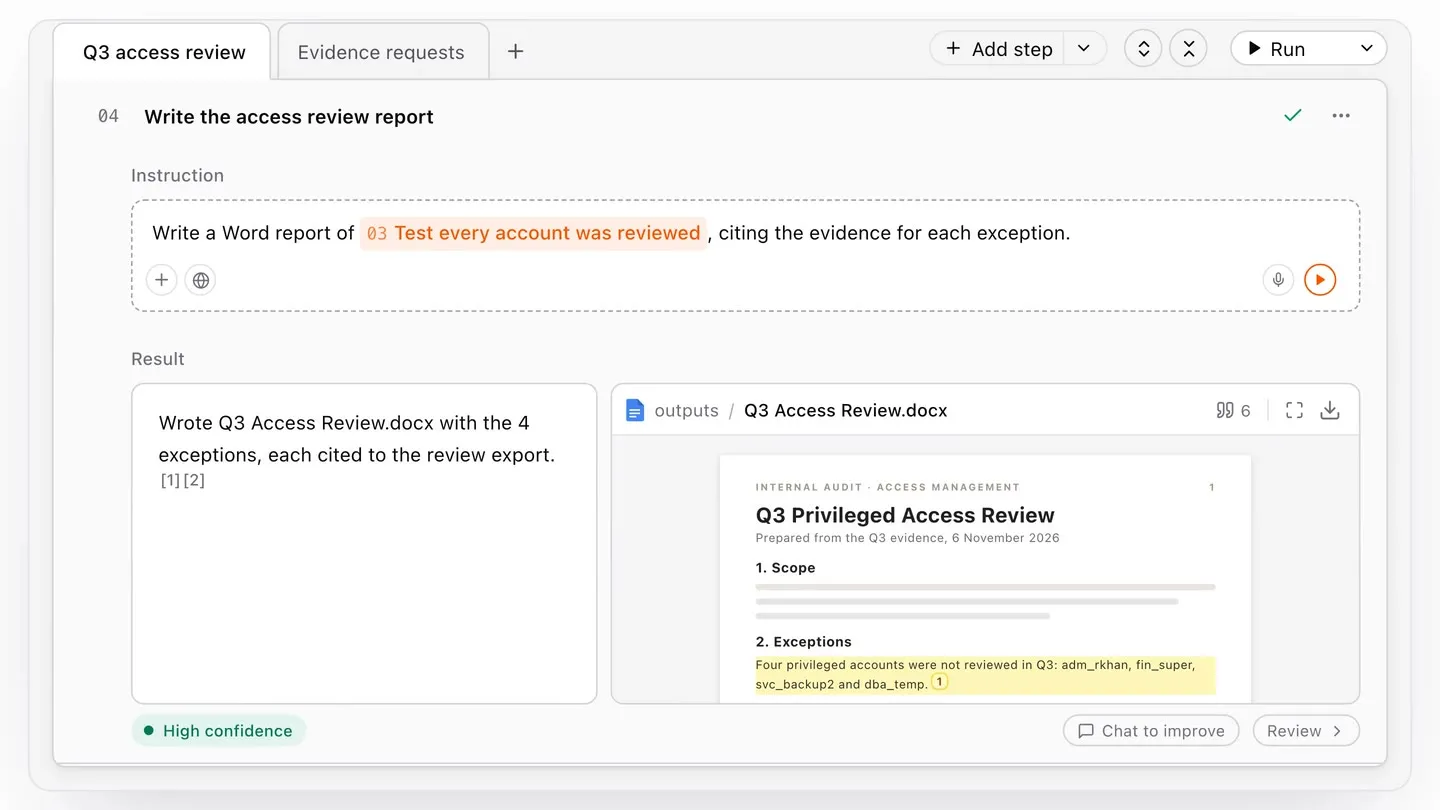
A single analysis is often just the beginning. When your work takes several steps, from gathering documents to a finished report, you can capture the whole method as a Notebook. You write each step in plain language, the way you would brief a colleague, and Normain carries it out across your documents, with a citation behind every answer and a finished deliverable at the end. Build a Notebook once, and the whole team can run the same method on their own files. See Notebooks for the full guide.
Going further
This was a quick guide to get you up and running, but there is much more to Normain. There are different Extraction types for different kinds of work, the chat can set up a whole project for you, and when a task takes several steps you can build a Notebook that carries the whole method through to a finished deliverable on your own template. We recommend reading on, starting with Creating a project.